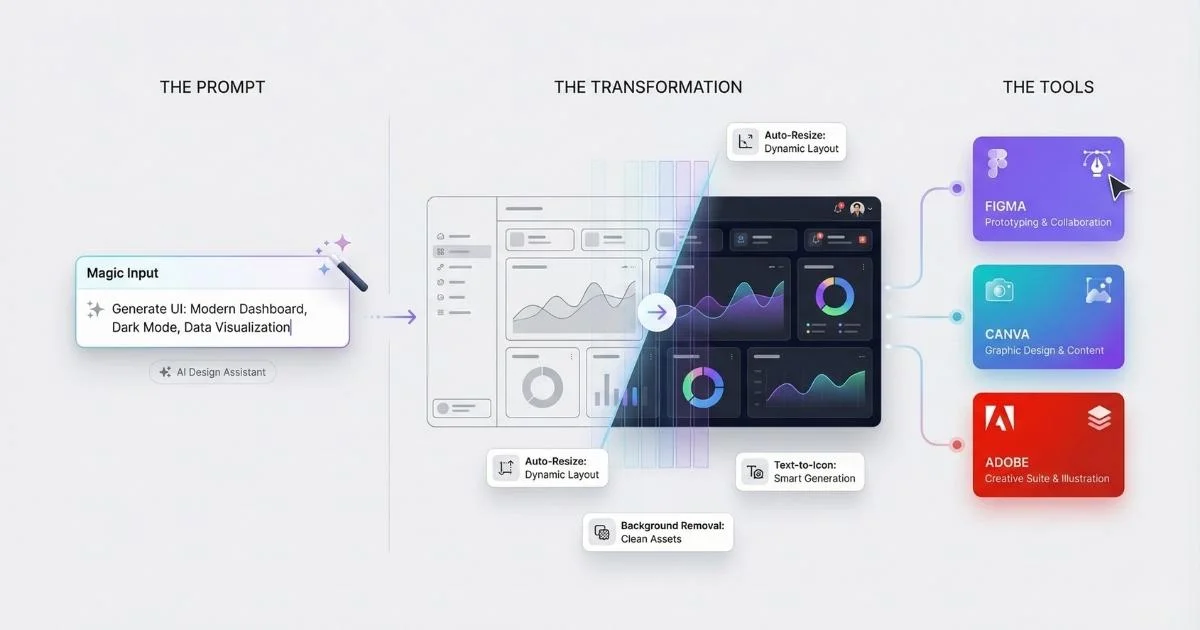
The Democratization of Design
AI has fundamentally shifted the barrier to entry for high-quality design. Professional-grade visuals, once requiring years of training or expensive agency contracts, are now accessible through natural language interfaces.
In December 2025, tools like Canva’s Magic Studio, Figma AI, and Adobe Firefly have matured beyond experimental features into core production workflows. The challenge has shifted from “how do I design this?” to “which AI tool is best for this specific visual task?”
This guide explores the current landscape of AI design tools, analyzing their strengths for different user needs—from marketing materials to UI/UX prototyping.
The analysis covers:
- How AI has fundamentally transformed design workflows in 2025
- The major AI-powered design platforms and their unique strengths
- Practical skills: using Canva Magic Studio, Figma AI, and Adobe Firefly
- When to use which tool for different design tasks
- The future of human-AI collaboration in design
Let’s dive in.
$6.77B
2025 Market Size
22.2% CAGR growth
60%+
Designers Use AI
Designer surveys 2025
34M+
AI Images Daily
Generated worldwide
78%
Orgs Using AI
McKinsey Global Survey
Sources: Research and Markets • Muz.li Design Survey • McKinsey
The Design Democratization Revolution
To understand why AI design matters, let’s look at the numbers. They tell a remarkable story of a creative field being transformed in real-time.
The Market Explosion
According to Research and Markets (November 2025), the AI-powered design tools market reached $6.77 billion in 2025, up from $5.54 billion in 2024—representing a 22.2% compound annual growth rate (CAGR). By 2029, it’s expected to hit nearly $15 billion.
💡 What does $6.77 billion look like? That’s roughly the same as the entire global music streaming market was in 2019. AI design has become a massive industry practically overnight.
Designer Adoption Statistics
But the real story isn’t in market size—it’s in adoption:
| Statistic | Source | Date |
|---|---|---|
| 60%+ of designers integrate AI tools into their workflow | Muz.li Design Survey | 2025 |
| 30% annual growth in AI-driven design industry | CADD Centre Industry Report | 2025 |
| 78% of organizations use AI in at least one business function | McKinsey Global Survey | 2025 |
| 34M+ AI-generated images created daily | Industry aggregate | December 2025 |
A Designer Fund and Foundation Capital study surveying nearly 400 designers in 2025 found that most use AI during initial phases—brainstorming, research, and concept generation—rather than final production. This confirms AI’s role as a creative partner, not a replacement.
The shift isn’t just about professional designers working faster. It’s about everyone becoming capable of professional design. Think of it this way:
Before AI Design Tools: Creating a professional logo required either design school training OR $500+ for an agency.
After AI Design Tools: You describe your brand in a few sentences, and AI generates dozens of options in seconds.
AI-Powered Design Tools Market Growth
Global market size in billions USD (22.2% CAGR projected)
$6.77B
2025 Market
22.2%
Annual Growth
$15.09B
2029 Projected
Sources: Research and Markets (Nov 2025) • CADD Centre Industry Report
The Three Pillars of AI Design
AI is transforming design in three fundamental ways. Think of these as three different superpowers you gain:
%%{init: {'theme': 'base', 'themeVariables': { 'primaryColor': '#8b5cf6', 'primaryTextColor': '#ffffff', 'primaryBorderColor': '#7c3aed', 'lineColor': '#a855f7', 'fontSize': '16px' }}}%%
flowchart LR
    A["AI Design Pillars"] --> B["Creation"]
    A --> C["Enhancement"]
    A --> D["Automation"]

    B --> B1["Generate from<br/>text prompts"]
    C --> C1["Improve existing<br/>designs"]
    D --> D1["Scale production<br/>at volume"]
1. 🎨 Creation (“Make something from nothing”)
- Generate designs from scratch using natural language
- Example: “Create a minimalist logo for an eco-friendly coffee shop”
- Analogy: Like having a talented artist friend who can sketch your ideas instantly
2. ✨ Enhancement (“Make good things great”)
- Improve existing work with AI-powered editing
- Examples: Background removal, style transfer, upscaling, object removal
- Analogy: Like having a professional retoucher on call 24/7
3. ⚡ Automation (“Do it at scale”)
- Batch processing and template-based generation
- Example: Generate 500 personalized certificates from a spreadsheet
- Analogy: Like having an army of interns who never make mistakes
These three capabilities combine to make design accessible to everyone while making professionals dramatically more productive.
The AI Design Landscape: Understanding Your Options
With dozens of AI design tools available, choosing the right one can feel overwhelming. Let me break down the landscape into clear categories.
%%{init: {'theme': 'base', 'themeVariables': { 'primaryColor': '#8b5cf6', 'primaryTextColor': '#ffffff', 'primaryBorderColor': '#7c3aed', 'lineColor': '#a855f7', 'fontSize': '16px' }}}%%
flowchart TB
    A["AI Design Tools"] --> B["All-in-One Platforms"]
    A --> C["Image Generators"]
    A --> D["Professional Suites"]
    A --> E["UI/UX Tools"]
    A --> F["Logo & Branding"]

    B --> B1["Canva Magic Studio"]
    B --> B2["Microsoft Designer"]

    C --> C1["Midjourney V7"]
    C --> C2["GPT-4o / DALL-E"]
    C --> C3["Ideogram 3.0"]
    C --> C4["Krea AI"]
    C --> C5["Recraft v3"]

    D --> D1["Adobe Firefly"]
    D --> D2["Affinity + Canva"]

    E --> E1["Figma AI"]
    E --> E2["Framer AI"]
    E --> E3["Galileo AI"]

    F --> F1["Looka"]
    F --> F2["Brandmark"]
    F --> F3["Logoai"]
Quick Reference: Which Tool for What?
| Category | Best Options | Ideal For | Skill Level |
|---|---|---|---|
| All-in-One | Canva, Microsoft Designer | Social media, presentations, marketing | Beginner |
| Image Generation | Midjourney, DALL-E, Ideogram, Krea AI | Unique visuals, concept art | Beginner-Intermediate |
For a comprehensive comparison of AI image tools, see the AI Image Generation guide. | Professional Editing | Adobe Creative Cloud + Firefly | High-end editing, print, video | Intermediate-Advanced | | UI/UX Design | Figma AI, Framer, Galileo | Interfaces, prototypes, websites | Intermediate | | Logo & Branding | Looka, Brandmark, Logoai | Brand identity, logo creation | Beginner |
AI Design Platform Comparison
Scores based on user reviews and feature analysis (December 2025)
💡 Key Insight: Canva leads in ease of use (95%) while Adobe Firefly offers the most AI features (95%). Microsoft Designer provides the best value for Microsoft 365 users.
Sources: Platform Documentation • User Review Analysis
How to Choose Your Primary Tool
Here’s my decision framework:
- Complete beginner or small business owner? → Start with Canva or Microsoft Designer
- UI/UX designer? → Figma AI is the industry standard with powerful AI additions
- Need artistic, photorealistic images? → Midjourney for art, GPT-4o for versatility
- Need text in your images? → Ideogram 3.0 or Recraft v3 for accurate typography
- Professional photographer or editor? → Adobe Creative Cloud with Firefly
- Building a brand from scratch? → Looka or Brandmark for complete brand kits
- Want real-time AI generation? → Krea AI for instant visual feedback
Canva Magic Studio: The Democratizer
If you could only learn one AI design tool, Canva Magic Studio would be my recommendation for most people. Here’s why.
What is Magic Studio?
Canva Magic Studio is Canva’s AI-powered creative suite, launched as part of their vision to become a “Creative Operating System.” Think of it as having an entire creative agency inside your browser—writers, designers, photographers, and video editors—all available through simple prompts.
💡 Simple Explanation: Magic Studio is like autocomplete for design. You start typing what you want, and AI helps you finish it—but instead of words, you get complete, professional designs.
Canva Create 2025: What’s New?
At Canva Create 2025 (April 10, Los Angeles), Canva announced major updates (Source: ZDNet, April 2025, Small Business Trends):
1. Canva AI Conversational Assistant
- ChatGPT-like interface within the editor
- Integrates Canva’s own AI with OpenAI, Anthropic, and Leonardo.ai’s “Phoenix” model
- Text AND voice input supported
2. Magic Studio at Scale
- Transform spreadsheet data into bulk content
- Auto-populate templates from Canva Sheets
- Generate personalized content at volume
3. Canva Code
- Create interactive experiences (calculators, quizzes, flashcards)
- No coding required—just describe what you want
4. Upgraded Photo Editor
- Generate new backgrounds with text prompts
- Object recognition for smart editing
- Auto-adjust lighting and mood
5. Generative Video (NEW December 2025)
- AI-generated video clips with sound and motion
- Powered by Google’s V3 model for realistic visuals
- Text AND voice prompts to create video content
6. AI Elements
- Generate images, videos, codelets, shapes, quizzes, and 3D objects
- Single interface for all element types
- Style Match Brush to copy any graphic’s stylistic attributes
7. Global Language & Culture Support
- Expanded to 16+ new languages
- Content adapts automatically to 31 local cultures
- Magic Translate works with all generated content
By December 2025, Canva’s position as a “Creative Operating System” has solidified, with Dream Lab (powered by the acquired Leonardo.ai “Phoenix” model) and the new Generative Video becoming standout features (Source: AI Tool Analysis, December 2025).
The Complete Magic Studio Feature Set
| Feature | What It Does | Best For | How It Works |
|---|---|---|---|
| Magic Design | Generates complete designs from prompts | Quick templates | Describe → Generate → Customize |
| Magic Write | AI copywriting for any content | Headlines, descriptions | Powered by GPT models |
| Magic Image | Text-to-image generation | Custom visuals | DALL-E integration |
| Dream Lab | High-end image generation | Photorealistic images | Leonardo.ai “Phoenix” model |
| Magic Media | Combined image + video generation | Versatile content | Single prompt → Image or video |
| Magic Edit | AI-powered photo editing | Quick fixes | Select → Describe change → Apply |
| Magic Eraser | Remove objects from images | Clean backgrounds | Click on object → Gone |
| Magic Expand | Extend image boundaries | Resize without cropping | AI generates matching content |
| Magic Grab | Select and move objects in photos | Recomposition | AI segments → You drag |
| Magic Animate | Add animations to designs | Social media videos | One-click motion |
| Magic Morph | Transform text and shapes | Creative effects | Style transfer AI |
| Background Remover | One-click background removal | Product photos | AI segmentation |
| Magic Switch | Convert between formats | Multi-platform | Resize + reformat automatically |
| Magic Translate | Translate into 100+ languages | Global reach | Translation AI |
| Style Match Brush | Copy graphic styles instantly | Brand consistency | Click source → Apply to target |
| AI Elements | Generate various element types | Diverse content | Describe → Select type → Generate |
Try This Now: Your First Magic Design
Here’s a simple experiment to see Magic Studio in action:
- Go to canva.com and sign up (free)
- Click “Create a Design” → “Instagram Post”
- Look for the ✨ Magic Design button
- Type: “Coffee shop Instagram post announcing a holiday sale, cozy winter vibes, 20% off”
- Browse the generated options and customize your favorite
Time comparison:
- Traditional way: 30-60 minutes
- With Magic Design: 2-5 minutes
NEW: Canva Sheets and Magic Studio at Scale
One of the most powerful additions is Canva Sheets—an Excel-like spreadsheet tool integrated directly into Canva (Source: Canva Newsroom, April 2025).
What makes it special:
| Feature | What It Does | Example |
|---|---|---|
| Magic Insights | AI extracts trends from your data | ”Show me top-performing products” |
| Magic Formulas | Natural language to calculations | ”Sum the Q4 revenue” → Formula appears |
| Magic Charts | Data to visualizations instantly | Spreadsheet → Beautiful chart in seconds |
| Bulk Operations | Generate hundreds of variants | 500 personalized certificates from one template |
Real-world scenario: You manage HR for a company with 500 employees receiving year-end certificates:
- Old way: Create each certificate individually (hours of work)
- With Canva Sheets + Magic Studio:
- Upload names/titles in Canva Sheets
- Design one template
- Click “Generate All”
- 500 personalized certificates in minutes
Canva Pricing (December 2025)
| Plan | Price | AI Features | Best For |
|---|---|---|---|
| Free | $0 | Limited Magic features (~25 uses/month) | Trying it out |
| Pro | $14.99/mo | Full Magic Studio access | Individual creators |
| Teams | $12.99/user/mo | Collaboration + Brand Kit AI | Small teams |
| Business | Custom | Enterprise features + Dream Lab full access | Large organizations |
Prices verified December 2025. Source: canva.com/pricing
When to Use Canva (and When Not To)
✅ Best for:
- Social media graphics and content calendars
- Presentations and pitch decks
- Marketing materials (flyers, brochures, banners)
- Brand kit management and consistency
- Quick video editing with AI voiceovers
- Non-designers who need professional results
- Teams needing collaborative design
⚠️ Not ideal for:
- Complex photo retouching (use Photoshop or Affinity Photo)
- Print-ready CMYK work with precise color control (use Affinity or Adobe)
- Detailed UI/UX design with component libraries (use Figma)
- Heavy illustration work (use Procreate or Illustrator)
Figma AI: The Designer’s Copilot
While Canva democratizes design for everyone, Figma AI augments professional designers. If you build apps, websites, or digital products, Figma is likely already your home—and the AI features make it even more powerful.
💡 Simple Explanation: Think of Figma AI as an experienced designer who sits next to you, learns your style, and handles the tedious parts while you focus on creativity.
What Makes Figma AI Different?
Figma’s philosophy is that AI should be a “design partner that understands context.” Rather than generating random designs, Figma AI learns from:
- Your existing work and style preferences
- Your component library and design system
- Your team’s patterns and conventions
This context-awareness is what makes Figma AI outputs feel like they belong in your project, not like generic AI art.
Config 2025: What Changed?
At Config 2025 (May 6-8, San Francisco), Figma announced major updates (Source: The Influence Agency, DesignerUp):
Key Announcements:
- Figma Make reached general availability
- First Draft was refined and relaunched after earlier pause
- AI Image Editing capabilities expanded significantly
- Figma Sites for direct website deployment
Core Figma AI Features (December 2025)
| Feature | What It Does | Status | Who It’s For |
|---|---|---|---|
| First Draft | Generates initial designs from concepts | ✅ GA | Designers starting new projects |
| Figma Make | Prompt-to-app/prototype generation | ✅ GA | Rapid prototyping |
| Rename Layers | AI-powered layer organization | ✅ GA | Everyone (saves hours!) |
| Visual Search | Find components by visual similarity | ✅ GA | Design system managers |
| AI Image Editing | Erase/Isolate/Expand objects (GPT-Image-1) | ✅ GA | Photo editing in Figma |
| Smart Prototyping | Auto-link screens based on user flow | ✅ GA | UX designers |
| Accessibility Checker | Built into color picker | ✅ GA | Inclusive design |
| Voice Design | Voice commands for hands-free designing | 🆕 2025 | Accessibility, rapid iteration |
| Copywriting AI | Rewrite, shorten, adjust tone | ✅ GA | Content designers |
| Connectors | Jira, Notion, GitHub, Asana integration | ✅ GA | Product teams |
Multi-Model AI Integrations (December 2025)
Following Figma’s Weavy acquisition, designers now have access to multiple AI models:
| Integration | Use Case | Access |
|---|---|---|
| Google Gemini 3 Pro | First Draft and Make generation | ✅ Built-in |
| OpenAI GPT-Image-1 | Background/object removal | ✅ Built-in |
| ChatGPT Integration | Generate visual assets and FigJam diagrams from chats | ✅ Available |
This multi-model approach gives designers flexibility in choosing the best AI for specific tasks rather than being locked into a single provider.
Understanding First Draft vs Figma Make
These two features sound similar but serve different purposes:
| First Draft | Figma Make | |
|---|---|---|
| What it creates | Single screen/component | Complete multi-screen apps |
| Input | Brief description | Detailed app concept |
| Output | Layout, typography, colors | Connected, interactive prototype |
| Best for | Starting individual designs | Building complete flows |
| Example prompt | ”Design a pricing table with three tiers" | "Create a mobile banking app with account overview, transactions, and transfers” |
💡 When to use which: Use First Draft when you’re stuck on a blank canvas for one screen. Use Figma Make when you need a complete user flow quickly.
NEW: Advanced AI Image Editing (December 2025)
December 2025 brought significant image editing capabilities directly into Figma (Source: Figma Release Notes):
| Feature | What It Does | Before vs After |
|---|---|---|
| Erase Object | Remove unwanted elements | Export to Photoshop → Now in Figma |
| Isolate Object | Separate subjects from backgrounds | Manual masking → One click |
| Expand Image | Extend image boundaries | Crop limitations → AI fills naturally |
This is powered by Google Gemini AI integration and reduces the need to leave Figma for basic image edits.
Try This Now: First Draft in Action
- Open any Figma file (figma.com - free account works)
- Create a new frame
- Right-click → “First Draft”
- Type: “Create a user profile card with avatar, name, bio, and social stats”
- Watch Figma generate several design options
- Pick one and customize
Time comparison:
- Manual: 15-30 minutes
- With First Draft: 2-3 minutes + customization
Figma MCP Server: AI Tool Integration
For power users, Figma now offers an official Model Context Protocol (MCP) Server that connects Figma to external AI tools like Claude and Cursor. For a complete introduction to MCP, see the MCP Introduction guide. This enables:
- AI assistants that can directly read and understand your Figma files
- Design-to-code workflows where AI understands component structure (see the AI-Powered IDEs guide for more)
- Automated design audits and suggestions
Figma Sites and Draw
In 2025, Figma expanded beyond design:
- Figma Sites: Deploy websites directly from Figma designs (no code required)
- Figma Draw: Enhanced vector illustration tools for more artistic work
The line between design tool and development platform continues to blur.
Figma Pricing (December 2025)
| Plan | Price | AI Features | Best For |
|---|---|---|---|
| Starter | Free | Limited AI features | Trying Figma out |
| Professional | $15/editor/mo | Full AI access | Individual designers |
| Organization | $45/editor/mo | Advanced controls + SSO | Large teams |
| Enterprise | Custom | Dedicated support + compliance | Enterprise |
Prices verified December 2025. Source: figma.com/pricing
Adobe Firefly and Creative Cloud AI
For professional designers, photographers, and video editors, Adobe Firefly represents the industry’s response to AI image generation—with a crucial difference: it’s trained exclusively on licensed content, making it safe for commercial use.
💡 Why this matters: Unlike Midjourney or DALL-E (trained on scraped internet images), Firefly uses Adobe Stock, openly licensed content, and public domain works. This means you can use Firefly outputs commercially without worrying about copyright claims.
Adobe MAX 2025: The Big Announcements
At Adobe MAX 2025 (October 28-30, Los Angeles), Adobe announced major updates (Source: Indian Express, Business Standard, TechBuzz.ai):
Firefly Image Models (2025) - Adobe released multiple models throughout the year:
| Model | Key Capability | Status |
|---|---|---|
| Image Model 4 | Speed-optimized generation | ✅ Available |
| Image Model 4 Ultra | Best photorealism | ✅ Available |
| Image Model 5 | Layered editing, 4MP native, Prompt-to-Edit | ✅ Available |
Firefly Image Model 5 (FIM 5) flagship capabilities:
| Capability | What’s New | Why It Matters |
|---|---|---|
| Native 4MP Resolution | ≈2240×1792 pixels without upscaling | Print-ready quality directly |
| Enhanced Photorealism | Better lighting, texture, anatomy | No more “AI hands” problems |
| Prompt to Edit | Describe changes in natural language | ”Make the sky more dramatic” |
| Layered Image Editing | Elements on separate layers | Professional compositing |
| Custom Models | Train AI on your own style | Consistent brand imagery |
| Harmonize | Blends elements to match scene lighting | Seamless composites |
| Generative Upscale | Low-res → 4K with Topaz Labs tech | Rescue old images |
NEW: Third-Party Model Marketplace (December 2025)
Adobe has become an “AI hub” by integrating best-in-class third-party models (Source: Adobe Newsroom, December 2025):
| Partner | Models Available | Use Case |
|---|---|---|
| OpenAI | GPT models, DALL-E | Text and image generation |
| Imagen 3 & 4, Veo 2 & 3, Nano Banana | Image and video | |
| Black Forest Labs | Flux 1.1, Flux 1 Kontext, FLUX.2 | Artistic image generation |
| Ideogram | Ideogram 3.0 | Best-in-class text-in-image |
| Luma AI | Ray 2 | 3D and video |
| Pika | Text-to-Video 2.2 | Video generation |
| Runway | Gen-4 Image | Video/image generation |
| ElevenLabs | Voice synthesis | Natural narration |
| Topaz Labs | Astra | Video enhancement, upscaling |
This multimodal ecosystem means you can access the best AI for each task without leaving Adobe apps.
Generative Fill in Photoshop: A Deep Dive
Generative Fill is Adobe’s flagship AI feature. Here’s how it works:
The Basic Process:
- Make a selection in your image
- Click “Generative Fill”
- Describe what you want (or leave blank to remove)
- AI generates three options
- Each option is on its own layer (non-destructive!)
What You Can Do:
| Task | How | Example Prompt |
|---|---|---|
| Add Objects | Select empty area, describe | ”Add a golden retriever playing” |
| Remove Objects | Select object, leave prompt blank | (Just select the thing to remove) |
| Extend Images | Expand canvas, select new area | ”Continue the beach scene” |
| Change Backgrounds | Select background, describe new one | ”Replace with modern office” |
| Style Matching | (Automatic) | AI matches lighting, color, grain |
Pro tip: Be specific! Instead of “add a person,” try:
“Add a woman in a red dress looking at the sunset, professional photography style, warm golden hour lighting”
Firefly Video Capabilities (December 2025)
Adobe’s video AI has matured significantly beyond the initial beta:
| Feature | What It Does | Status |
|---|---|---|
| Text-to-Video | Generate video from text prompts | ✅ GA |
| Image-to-Video | Animate static images | ✅ GA |
| Generative Extend | Add new footage at beginning/end | ✅ GA |
| Camera Motion Control | Precise video edits and movement | ✅ Available |
| Video Upscaling | Enhance/restore footage with Topaz Astra | ✅ Available |
| Firefly Video Editor | Multi-track timeline, AI-powered | 📕 Full Beta |
For more on AI video tools, see the AI Video Generation guide.
Audio Generation
| Tool | What It Does | Status |
|---|---|---|
| Generate Soundtrack | AI-composed, fully licensed music | ✅ Available |
| Generate Speech | Natural voiceovers (ElevenLabs) | ✅ Available |
Explore more audio tools in our AI Voice and Audio guide.
Vector and 3D Generation (NEW December 2025)
| Capability | Description | Status |
|---|---|---|
| Vector Model | Generate editable SVG artwork from natural language | ✅ Available |
| Text-to-3D | Create 3D objects from prompts for rapid prototyping | ✅ Available |
| Firefly Boards | Collaborative workspace for ideation and storyboarding | 📕 Public Beta |
Firefly Mobile App
Adobe released a native Firefly mobile app for iOS and Android in June 2025, extending core image generation and editing to mobile devices.
Try This Now: Generative Fill
- Open Photoshop (requires CC subscription or trial)
- Open any photo
- Use the Rectangular Marquee to select an area
- Click the floating “Generative Fill” bar
- Type a prompt or leave blank to remove content
- Review the three variations
Time comparison:
- Manual compositing: 30-60 minutes
- With Generative Fill: 2-5 minutes
Adobe Pricing (December 2025)
| Access Method | Price | Firefly Credits | Best For |
|---|---|---|---|
| Adobe Express Free | $0 | ~25/month | Trying it out |
| Adobe Express Premium | $9.99/mo | Enhanced credits | Light users |
| Photography Plan | $9.99/mo | 100/month | Photographers |
| Creative Cloud All Apps | $59.99/mo | 500/month | Professionals |
| Firefly Premium Add-on | Varies | 2,000+/month | Heavy AI users |
Prices verified December 2025. Source: adobe.com/creativecloud/plans
When to Use Adobe Firefly
✅ Best for:
- Commercial projects requiring copyright-safe AI
- Professional photo editing and compositing
- Integration with existing Creative Cloud workflow
- High-resolution output for print
- Teams with existing Adobe subscriptions
⚠️ Consider alternatives if:
- You need maximum artistic style (try Midjourney)
- You want a free, no-commitment option (try Canva or Ideogram)
- You’re primarily designing UI (try Figma)
- You want to run AI locally (try Stable Diffusion)
AI Image Generation Tools: The Deep Dive
Beyond all-in-one platforms, standalone AI image generators offer specialized capabilities for creating unique visuals. Here’s what you need to know about the major players in December 2025.
AI Image Generator Comparison
December 2025 benchmarks
| Platform | Image Quality | Text Accuracy | Ease of Use | Free Tier | Video |
|---|---|---|---|---|---|
Midjourney V7 | 95% | 20% | 60% | ✗ | ✓ |
GPT-4o | 85% | 98% | 95% | ✓ | – |
Ideogram 3.0 | 80% | 95% | 85% | ✓ | – |
Krea AI | 80% | 70% | 85% | ✓ | ✓ |
Recraft v3 | 90% | 95% | 80% | ✓ | – |
🏆 Top Picks: Midjourney for artistic quality, GPT-4o for text rendering, Krea AI for real-time creation, Recraft v3 for precise text positioning.
Sources: Artificial Analysis • Hugging Face
Midjourney V7: The Artistic Champion
Released in June 2025, Midjourney V7 remains the gold standard for artistic, photorealistic, and cinematic visuals.
Key Features (Updated December 2025):
- V1 Video Model: Generate short video clips from images (60 seconds from 6 images in ~3 hours)
- Draft Mode: 10x faster previews at half the cost, supports voice prompting
- Character Consistency 2.0: Improved fidelity for recurring characters across images
- Omni Reference: Maintain consistency for characters, objects, AND logos
- Style Personalization: AI learns your preferences from your ratings
- Style Creator (Nov 2025): Create custom SREF codes and User Profiles
- Multilingual Support: Process prompts in multiple languages
- Advanced Editor: Layers, collages, and texture changes
Strengths: Unmatched aesthetic quality (95% on benchmarks) Weakness: Text rendering (only 20% accuracy) Pricing: $8-10/month (no free tier)
Note: V8 is reportedly in training with a potential January 2026 release.
GPT-4o / DALL-E: The Accessible All-Rounder
OpenAI’s GPT-4o replaced DALL-E 3 in ChatGPT in April 2025, offering:
- Superior prompt understanding: Nuanced interpretation of complex descriptions
- Reliable text rendering: 98% accuracy for text in images
- Conversational iteration: Refine images through natural dialogue
- Image input for editing: Modify uploaded images with prompts
Best for: Text-heavy images, quick iterations, conversational workflow Access: ChatGPT Plus ($20/mo) or free tier with limits
Ideogram 3.0: The Text Rendering King
If you need legible text in your images, Ideogram 3.0 (released March 2025) is unmatched:
- Best-in-class typography: Clear, accurate text rendering (95% accuracy)
- Style Reference: Match colors and moods from uploaded images
- Style Codes: Save and reuse aesthetic preferences
- Canvas Editor: Inpainting, outpainting, and Magic Fill
Best for: Logos, posters, banners, marketing materials with text Pricing: Free tier available, Pro from $8/month
🔥 Krea AI: The Real-Time Creative Platform
Krea AI is the rising star of 2025, evolving from a real-time canvas tool into a comprehensive creative platform.
Core Capabilities (December 2025):
- Real-time image generation as you draw or type
- Video generation from text or images
- Upscaling up to 22K resolution
- 3D asset creation with Hunyuan3D-2.1
- AnimateDiff for dynamic short videos
- Logo illusions and artistic effects
Major 2025 Additions:
| Feature | Description | Release |
|---|---|---|
| Krea 1 | Image model with superior aesthetic control and photorealism | 2025 |
| FLUX Krea | Open-source version of Krea 1 | 2025 |
| Node App Builder | Create custom AI tools without code | Dec 2025 |
| Realtime Video | Frame-consistent video with instant feedback | Aug 2025 |
| Motion Transfer | Transfer motion between videos | Aug 2025 |
| Painting with Prompts | Apply different prompts to selected canvas areas | 2025 |
| Video-to-Video | Transform clips while preserving motion | 2025 |
| Kontext Dev | High-speed image generation and editing | 2025 |
| Seedream 3.0 | Advanced image generation with creative flexibility | 2025 |
Node App Builder (December 2025): Krea’s newest feature allows users to:
- Package AI workflows into shareable apps
- Connect 50+ AI models in one workflow
- Automate repetitive creative tasks
- Share tools with non-technical team members
Best for: Rapid ideation, production-ready assets, interactive exploration, custom AI tool creation Pricing: Free tier available, Pro plans for heavy users
🏆 Recraft v3: The Benchmark Leader
Recraft v3 has been #1 on the Hugging Face Artificial Analysis benchmark for 5+ consecutive months, with a unique capability: precise text positioning.
Key Features:
- Only model that can position text at specific locations in images
- Exceptional style control and sharpness
- Long, legible text generation
- Batch design with consistent styling
- Layer effects: shadows, strokes, blurs
- Improved mockups with blend modes and textures
- Quick start: Type “recraft.new” in browser to begin instantly
December 2025 External Model Integrations:
| Model | Release Date | Credits |
|---|---|---|
| GPT Image 1.5 | Dec 20, 2025 | Variable |
| Flux 2 Max | Dec 16, 2025 | 10/gen |
| Seedream v4.5 | Dec 12, 2025 | 2/gen |
| Flux 2 | Nov 2025 | 10/gen |
| Nano Banana Pro | Nov 2025 | Variable |
Best for: Designs requiring precise text placement, batch production Pricing: 50 free credits daily, paid plans from $20/month
AI Logo and Brand Identity Tools
For creating complete brand identities, specialized tools outperform general-purpose generators:
| Tool | Key Feature | Pricing |
|---|---|---|
| Looka | 300+ branded templates auto-generated | From $20 one-time |
| Brandmark | One-time payment, unlimited edits | $25-175 one-time |
| Logoai | Full brand identity suite + GPT-4o | From $29 |
| Hatchful | E-commerce focused (Shopify) | Free |
| Designs.ai | Logo + video + mockups | $29/mo |
These tools generate not just logos but complete brand kits: color palettes, typography, business cards, social media templates, and more.
UI/UX AI Tools: Google Stitch, Framer, and Beyond
For interface designers and web developers, specialized UI/UX AI tools offer capabilities that general design tools lack.
Google Stitch (formerly Galileo AI): Text-to-UI Generation
Google Stitch (formerly Galileo AI, acquired by Google in May 2025) generates high-fidelity UI designs from text descriptions.
Core Features:
- Text-to-UI: “Design a meditation app dashboard”
- Image-to-UI: Convert sketches/wireframes to polished designs
- Multi-screen Support (Dec 2025): Stitch multiple screens together, edit any element
- Google AI Studio Export: Export HTML, CSS, and flows for app generation
- Powered by Gemini: Uses Gemini 2.5 Flash (Standard) and Gemini 2.5 Pro (Experimental)
December 2025 Updates:
- Stitch multiple screens into connected prototypes
- Clickable prototypes with real transitions in under 5 minutes
- AI updates across multiple screens automatically
- Export to Google AI Studio for backend generation
Nano Banana Integration (Nov 2025): Redesign websites using natural language from screenshots, URLs, or existing pages
Pricing: FREE (350 generations/month Standard, 50 generations/month Experimental)
Best for: Quick UI mockups, design exploration, rapid prototyping, design-to-code workflows
Framer AI: Website Generation
Framer evolved from a prototyping tool to a full AI-powered website builder:
Key Features (December 2025):
| Feature | Description |
|---|---|
| Wireframer | Generate website layouts from prompts (GPT-4o powered) |
| Workshop | AI builds complex components (tabs, sliders, effects) via “vibe-coding” |
| AI Translate | One-click multilingual websites |
| AI Plugins | Connect OpenAI, Gemini for image/copy generation |
| Figma-to-site | Convert Figma designs with style-aware rendering |
| Design Pages | Free-form canvas for design iteration (similar to Figma) |
| Advanced Analytics | Built-in A/B testing, funnels, click tracking |
| Vectors 2.0 | Draw paths, create animations, build icon libraries |
| Masonry Grids | Flexible layouts for dynamic content |
| Mobile CMS | Mobile-friendly content management |
Best for: Rapid website prototyping, landing pages, portfolios, production sites
Penpot: Open-Source AI Design
For teams wanting open-source control, Penpot offers:
Core Features:
- Browser-based, open-source design tool
- “Design as Code” philosophy for developer collaboration
- New render engine (Skia + WebAssembly) for native-like performance
- Variants functionality (v2.10, December 2025)
AI Features (December 2025):
| Feature | Description | Status |
|---|---|---|
| MCP Server | AI agents interact with Penpot designs | 📕 Preview |
| AI-Powered Help | Built into workspace | ✅ v2.8 |
| AI Design Co-Pilot | Describe changes via text, AI edits SVG | 🔄 Development |
| UX2Doc | Auto-generate technical/functional UI/UX specs | 🔄 Development |
Penpot’s AI strategy emphasizes openness and community collaboration, inviting developers to explore AI potential rather than delivering closed-source solutions.
Best for: Teams wanting transparency, design-to-code workflows, no vendor lock-in
The Design-to-Code Pipeline
Modern AI tools are blurring the line between design and development:
%%{init: {'theme': 'base', 'themeVariables': { 'primaryColor': '#8b5cf6', 'primaryTextColor': '#ffffff', 'primaryBorderColor': '#7c3aed', 'lineColor': '#a855f7', 'fontSize': '16px' }}}%%
flowchart LR
    A["Idea/Prompt"] --> B["AI Design Generation"]
    B --> C["Human Refinement"]
    C --> D["AI-Assisted Code Export"]
    D --> E["Live Website/App"]

    B -.->|"Figma, Google Stitch"| B
    C -.->|"Designer review"| C
    D -.->|"Framer, Figma Sites"| D
The future is designs that ship directly to production with minimal manual coding.
Practical Workflows: Putting It All Together
Let’s look at how these tools work in real-world scenarios.
Workflow 1: Social Media Content Calendar
Tools: Canva Magic Studio + Canva Sheets
- Plan content in Canva Sheets (dates, topics, copy)
- Design one template using Magic Design
- Use bulk operations to generate variations for each post
- Magic Resize for different platforms (Instagram, LinkedIn, Twitter)
- Schedule directly from Canva or export
Time savings: 5-10 hours/week for a content manager
Workflow 2: Website Redesign
Tools: Figma AI + Framer
- Start with First Draft in Figma to explore concepts
- Refine with AI Image Editing for any visual assets
- Use Figma Make to prototype user flows
- Export to Framer for live website generation
- AI Translate for multilingual versions
Time savings: Weeks reduced to days for a landing page
Workflow 3: Brand Asset Creation
Tools: Looka + Canva Magic Studio
- Generate logo options with Looka
- Export brand kit (colors, fonts, templates)
- Import to Canva Brand Kit
- Use Magic Studio to create consistent marketing materials
- Dream Lab for custom imagery matching brand style
Time savings: Weeks of agency work condensed to a weekend
Workflow 4: Photo Editing and Marketing
Tools: Adobe Firefly (Photoshop) + Canva
- Edit product photos with Generative Fill (remove backgrounds, extend images)
- Create consistent visuals with Firefly’s style matching
- Export to Canva for marketing collateral
- Use Magic Animate for social media videos
- Magic Resize for all platform sizes
Time savings: Hours per image reduced to minutes
Workflow 5: Mobile App UI Design
Tools: Figma AI + Google Stitch + Krea AI
- Brainstorm concepts with Google Stitch (free, 350 generations)
- Refine with First Draft in Figma for each screen
- Generate custom illustrations with Krea AI
- Use Figma Make for complete interactive prototype
- Test with Connectors linking to user research tools
Time savings: Complete app prototype from idea in 1-2 days vs 1-2 weeks
Workflow 6: E-Commerce Product Launch
Tools: Adobe Firefly + Recraft + Canva
- Edit product photos with Firefly Generative Fill (backgrounds, lighting)
- Create text-based graphics with Recraft (packaging, labels)
- Generate lifestyle mockups with Firefly Image-to-Image
- Build launch campaign in Canva (social, email, ads)
- Use Canva Sheets for bulk variant generation (sizes, colors)
Time savings: Full product visual suite in 2-3 days vs 2-3 weeks
Workflow 7: YouTube Thumbnail Production at Scale
Tools: Midjourney + Canva + Ideogram
- Generate eye-catching backgrounds with Midjourney
- Add text overlays with Ideogram 3.0 (best text rendering)
- Create thumbnail template in Canva
- Use Magic Studio for A/B variants
- Batch export at YouTube-optimized resolution
Time savings: 10 thumbnails in 30 minutes vs 5+ hours
Workflow 8: Complete Brand Rebrand
Tools: Looka + Midjourney + Figma AI + Canva + Recraft
- Generate logo concepts with Looka (get brand kit)
- Create visual mood board with Midjourney (style references)
- Design website mockups with Figma AI First Draft
- Generate brand imagery with Recraft (consistent style)
- Build marketing templates in Canva Brand Kit
- Create brand guidelines document with Canva
Time savings: Complete rebrand in 1-2 weeks vs 2-3 months with agency
Social Media Graphics
Canva or Microsoft Designer
Templates + Magic Resize
UI/UX Design
Figma AI or Framer
Industry standard + AI features
Photo Editing
Adobe Firefly or Canva
Professional Generative Fill
Brand Identity
Looka or Brandmark
Complete brand kit generation
Artistic Images
Midjourney or Leonardo.ai
Highest aesthetic quality
Marketing with Text
Ideogram or GPT-4o
Best text rendering accuracy
Real-time Creation
Krea AI or Leonardo Canvas
Instant visual feedback
The Art of Design Prompting
Effective prompts are the key to getting great results from AI design tools. This section teaches you how to craft prompts that consistently produce professional-quality outputs.
Prompt Structure for Design Tools
A well-structured design prompt includes these components:
| Component | Description | Example |
|---|---|---|
| Subject | What to create | ”minimalist logo” |
| Style | Visual aesthetic | ”flat design, geometric” |
| Colors | Color guidance | ”earth tones, #3A5F3A” |
| Context | Usage/purpose | ”for eco-friendly brand” |
| Constraints | What to avoid | ”no gradients, no text” |
Platform-Specific Prompting
Midjourney Prompting
Midjourney uses parameters to control output:
| Parameter | Purpose | Example |
|---|---|---|
--ar | Aspect ratio | --ar 16:9, --ar 1:1 |
--stylize | Artistic strength | --stylize 50 (subtle) to --stylize 750 (artistic) |
--style raw | More literal interpretation | Useful for precise prompts |
--no | Negative prompts | --no text, --no watermark |
--cref | Character reference | --cref [image URL] |
--sref | Style reference | --sref [image URL] |
--cw | Character weight | --cw 0-100 (100 = strongest) |
--q | Quality level | --q 2 for highest quality |
Example prompt:
“Professional headshot of a confident businesswoman, soft studio lighting, neutral background, corporate photography style —ar 3:4 —stylize 100 —no text”
Canva Magic Design Prompting
Canva works best with contextual, natural language prompts:
- Be specific about use case: “Instagram post for…” not just “social media”
- Include brand context: “for a luxury boutique…”
- Mention mood: “cozy, warm, inviting”
- Specify audience: “targeting young professionals”
Example prompt:
“Instagram post announcing a holiday sale for a boutique coffee shop, cozy winter vibes, steaming latte imagery, 20% off messaging, warm and inviting tone”
Figma AI Prompting
Figma AI understands design context:
- Reference existing components: “matching our button style”
- Specify variants: “light and dark mode versions”
- Include responsive: “mobile-first, scales to desktop”
- Consider accessibility: “WCAG AA compliant colors”
Example prompt:
“Design a pricing table with three tiers (Basic, Pro, Enterprise), matching our existing button styles, includes feature checkmarks, mobile responsive”
Prompt Templates Library
Logo Design Prompts
| Use Case | Prompt Template |
|---|---|
| Tech Startup | ”Minimalist logo for [name], tech company, lettermark, clean lines, modern sans-serif inspiration, [2 colors], scalable for app icon and business cards” |
| Restaurant | ”Restaurant logo for [name], [cuisine type] cuisine, warm and inviting, incorporates [element], vintage inspired, works on menus and signage” |
| Personal Brand | ”Professional personal logo for [name], [industry] professional, sophisticated, memorable monogram, [color palette], suitable for LinkedIn and business cards” |
| E-commerce | ”E-commerce logo for [name], selling [products], modern and trustworthy, includes subtle shopping element, works at all sizes” |
| Fitness/Wellness | ”Dynamic logo for [name] fitness brand, energetic, incorporates movement, bold typography, works on apparel and equipment” |
Social Media Prompts
| Platform | Prompt Template |
|---|---|
| Instagram Post | ”Instagram post announcing [event], [brand voice] tone, include text ‘[message]’, eye-catching composition, optimized for engagement, [aesthetic] style” |
| LinkedIn Banner | ”Professional LinkedIn banner for [profession], showcasing [skills/expertise], clean and corporate, includes subtle [industry] elements, trustworthy impression” |
| Twitter/X Header | ”Twitter header for [name/brand], [personality] vibe, [colors], works with circular profile photo overlay, balanced composition” |
| YouTube Thumbnail | ”YouTube thumbnail for video about [topic], attention-grabbing, includes readable text ‘[title]’, [emotion] expression, contrasting colors” |
UI/UX Prompts
| Element | Prompt Template |
|---|---|
| Dashboard | ”Dashboard design for [app type], displaying [metrics], modern card-based layout, [color scheme], includes charts and action buttons” |
| Landing Page | ”Landing page hero section for [product], compelling headline area, prominent CTA, [visual style], includes social proof section” |
| Mobile App Screen | ”Mobile app [screen type] for [app purpose], iOS/Material style, [color scheme], includes navigation, optimized for thumb reach” |
| Form Design | ”User-friendly form for [purpose], clear labels, helpful validation states, accessible design, [visual style]“ |
Common Prompting Mistakes and Fixes
| Mistake | Bad Example | Better Version |
|---|---|---|
| Too vague | ”Make me a logo" | "Modern geometric logo for ‘EcoBloom’ eco-friendly cosmetics, leaf motif, green and gold, minimalist, works at small sizes” |
| Too complex | [200+ words with conflicting directions] | Focus on 5-7 key attributes, be consistent |
| Wrong tool | Detailed text layout in Midjourney | Use Ideogram or Recraft for accurate text |
| No context | ”Blue button" | "Primary CTA button for SaaS dashboard, matches existing purple theme, says ‘Start Free Trial’, includes hover state” |
| Conflicting styles | ”Minimalist but with many decorative elements” | Choose one direction: “Clean minimalist with single accent element” |
| Ignoring negatives | (No negative prompts) | Add --no text, watermark, busy background as needed |
Complete Pricing & Cost Analysis (January 2026)
Understanding the true cost of AI design tools is essential for budgeting and tool selection.
Cost Comparison Matrix
| Tool | Free Tier | Entry Paid | Professional | Enterprise |
|---|---|---|---|---|
| Canva | 25 AI uses/mo | $14.99/mo (Pro) | $12.99/user/mo (Teams) | Custom |
| Figma | Limited AI | $15/editor/mo | $45/editor/mo (Org) | Custom |
| Adobe Firefly | 25 credits/mo | $9.99/mo (Express) | $59.99/mo (All Apps) | Custom |
| Midjourney | None | $8/mo (Basic) | $24/mo (Standard) | $48/mo (Pro) |
| Google Stitch | 350 std + 50 exp/mo | FREE | FREE | N/A |
| Krea AI | Generous free tier | $12/mo | $36/mo | Custom |
| Ideogram | 25/day | $8/mo | $20/mo | Custom |
| Recraft | 50 credits/day | $20/mo | $100/mo | Custom |
| Looka | Generate free | $20 one-time (basic) | $65 one-time (premium) | $80+ (brand kit) |
Cost Per Design Estimates
| Design Type | Traditional Agency | Freelancer | AI-Assisted Human | Pure AI |
|---|---|---|---|---|
| Logo | $500-5,000 | $150-500 | $50-150 | $5-20 |
| Social Post | $50-200 | $25-75 | $5-15 | $0.50-2 |
| Landing Page | $2,000-10,000 | $500-2,000 | $100-300 | $20-50 |
| Brand Kit | $3,000-15,000 | $1,000-3,000 | $200-500 | $30-100 |
| App UI (10 screens) | $5,000-50,000 | $2,000-10,000 | $500-2,000 | $100-500 |
| Product Photos (10) | $500-2,000 | $200-500 | $50-100 | $10-30 |
Budget Recommendations by User Type
| User Type | Monthly Budget | Recommended Stack | Why |
|---|---|---|---|
| Solo Creator | $0-30 | Canva Free + Google Stitch + Ideogram Free | Maximum value, covers most needs |
| Freelance Designer | $30-75 | Canva Pro + Figma Pro + Ideogram Pro | Professional output, client-ready |
| Startup (5 people) | $150-300 | Canva Teams + Figma Org + Midjourney Standard | Collaboration + quality |
| Creative Agency | $500-2,000 | Full Adobe CC + Figma + Midjourney Pro + Krea Pro | Complete arsenal |
| Enterprise | $2,000+ | All enterprise tiers + custom models | Full control, compliance |
Hidden Costs to Consider
| Cost Category | What to Watch For |
|---|---|
| Overage charges | Firefly credits run out fast; Midjourney job limits on Basic |
| Export limitations | Free tiers often limit resolution, watermark, or format options |
| Team scaling | Per-seat pricing adds up quickly beyond 5-10 users |
| Training time | Factor in 2-20 hours learning curve per tool |
| Integration costs | API access often requires higher tiers |
| Print limitations | High-res export may require premium plans |
ROI Calculator
| Metric | Before AI | After AI | Time Savings | Cost Savings |
|---|---|---|---|---|
| Time per social post | 45 min | 10 min | 78% | ~$30/post |
| Time per presentation | 4 hours | 1 hour | 75% | ~$200/deck |
| Logo concepts | 3 days | 2 hours | 95% | ~$400 |
| Iteration cycles | 5-10 | 2-3 | 60-70% | Hours of revisions |
| Photo editing (per image) | 30 min | 5 min | 83% | ~$20/image |
AI Design for Specific Industries
Different industries have unique requirements for AI design tools. Here’s how to apply them effectively in your field.
E-Commerce & Product Design
Best Tool Stack:
- Product Photos: Adobe Firefly (background replacement, lifestyle shots)
- Packaging Design: Canva + Recraft (text accuracy)
- Store Banners: Canva Magic Design
- Product Mockups: Krea AI
Common Tasks:
| Task | Best Tool | Technique |
|---|---|---|
| Remove background | Firefly/Canva | One-click, no prompt needed |
| Lifestyle context | Firefly Gen Fill | ”Product on marble counter, soft morning light” |
| Seasonal variants | Canva Bulk Create | Generate holiday versions at scale |
| A/B test images | Krea AI | Generate 10 variations rapidly |
| Size variants | Canva Magic Switch | Auto-resize for all platforms |
Pro Tip: Use real product photos as base, AI for enhancement. AI-generated products from scratch can look uncanny.
Real Estate & Architecture
Best Tool Stack:
- Virtual Staging: Midjourney + Photoshop Generative Fill
- Architectural Visualization: Google Stitch + Krea AI
- Floor Plans: Figma AI
- Marketing Materials: Canva
Virtual Staging Workflow:
- Upload empty room photo to Photoshop
- Select furniture areas with Generative Fill
- Prompt: “Modern scandinavian living room furniture, interior design photography, soft natural light”
- Blend with manual adjustments
- Export to Canva for listing graphics
Avoid: Over-realistic staging that misleads buyers. Always disclose AI usage in listings.
Healthcare & Medical
Key Considerations:
- ⚠️ HIPAA compliance for patient-related imagery
- ⚠️ Medical accuracy requirements
- ⚠️ Regulatory restrictions on AI-generated medical imagery
Safe Use Cases:
- Marketing materials (non-clinical)
- Educational illustrations
- Website design and branding
- Recruitment and HR graphics
- Patient education handouts (non-diagnostic)
Avoid:
- Any patient information near AI tools
- Clinical documentation imagery
- Diagnostic or procedural visuals
- Anything that could be mistaken for clinical advice
Restaurant & Hospitality
Best Tool Stack:
- Menu Design: Canva Magic Studio
- Food Photography Enhancement: Adobe Firefly
- Social Media Content: Canva + Krea AI
- Brand Identity: Looka + Canva
Food Photography Tips:
- ✅ Firefly excels at extending plates, adjusting lighting
- ✅ Use real photos as base, AI for enhancement
- ❌ Avoid generating food from scratch (uncanny results)
- ✅ Great for background replacement and mood adjustment
Menu Design Workflow:
- Create brand kit in Canva with colors/fonts
- Use Magic Design for initial layout
- Add real food photos (enhanced with Firefly if needed)
- Use Magic Write for dish descriptions
- Export in print-ready format
Education & E-Learning
Best Tool Stack:
- Course Graphics: Canva for Education (free for educators)
- Diagram Generation: Figma AI
- Character Illustrations: Ideogram + Midjourney
- Presentation Design: Canva Magic Studio
Creating Consistent Course Characters:
- Generate character options in Midjourney
- Select “hero” character and save reference
- Use
--creffor all future generations - Build character pose library (10-20 poses)
- Import to Canva as Brand Kit elements
- Team uses only approved character assets
Pro Tip: Create a style guide document first, then use it as reference for all AI generations.
Finance & Legal (Conservative Industries)
Key Considerations:
- Professional, conservative aesthetics expected
- Compliance with industry regulations
- Data visualization accuracy is critical
- Trust and credibility are paramount
Best Tool Stack:
- Reports & Documents: Canva + Canva Sheets
- Data Visualization: Figma AI (precision control)
- Presentations: Canva Magic Studio
- Website Design: Framer AI
Style Guidelines:
- Avoid overly creative or artistic AI imagery
- Focus on clean, professional templates
- Use AI for data visualization, not hero imagery
- Stick to established brand colors and fonts
- Prioritize legibility and clarity over creativity
Troubleshooting Common AI Design Problems
When AI design tools don’t work as expected, use this guide to diagnose and fix issues.
Generation Quality Issues
| Problem | Likely Cause | Solution |
|---|---|---|
| Blurry outputs | Low resolution settings | Use 4K/high-quality mode; upscale with Topaz or Krea |
| Wrong style | Prompt too vague | Add specific style references (—sref in Midjourney) |
| Inconsistent characters | No character reference | Use —cref (Midjourney), Krea consistency mode |
| Bad text rendering | Wrong tool | Switch to Ideogram 3.0 or Recraft for text |
| Uncanny faces | Model limitations | Use “professional photography” in prompt; avoid extreme close-ups |
| Wrong colors | No color guidance | Specify hex codes or color names explicitly |
| Artifacts/glitches | Overcomplicated prompt | Simplify, remove conflicting directions |
| Generic results | Too common prompt | Add unique details, style codes, or references |
Platform-Specific Fixes
Canva Issues
| Issue | Fix |
|---|---|
| Magic Design not loading | Clear browser cache, try incognito mode, disable extensions |
| AI features missing | Check subscription tier, update app, verify region support |
| Brand Kit not applying | Re-sync Brand Kit, check element compatibility |
| Export quality poor | Upgrade to Pro for HD, use PNG for transparency |
| Slow generation | Reduce complexity, check internet connection |
Figma AI Issues
| Issue | Fix |
|---|---|
| First Draft not appearing | Ensure latest Figma version, check AI settings enabled |
| Generated designs don’t match style | Add design system context, reference existing components |
| AI Image Editing slow | Reduce image size first, check network connection |
| Voice commands not working | Enable microphone permissions, use Chrome browser |
| Make not generating correctly | Be more specific about app type and features |
Midjourney Issues
| Issue | Fix |
|---|---|
| ”Job failed” errors | Simplify prompt, remove conflicting parameters |
| Wrong aspect ratio | Explicitly set --ar after prompt text |
| Style too different from reference | Increase --sw (style weight) value |
| Content policy blocks | Rephrase prompt, avoid flagged terms |
| Character inconsistency | Use --cref with --cw 100 for strongest match |
| Text appearing when not wanted | Add --no text, words, letters to prompt |
Adobe Firefly Issues
| Issue | Fix |
|---|---|
| Credits depleting fast | Use draft mode first, batch similar edits |
| Generative Fill not blending | Expand selection slightly, add feather edge |
| Custom model not working | Check beta access status, model training completion |
| Low resolution output | Use Generative Upscale, export at higher settings |
| Style not matching | Use Structure Reference with higher fidelity |
When AI Isn’t the Right Solution
Signs you need human design:
- Legal/compliance-critical documents
- Precise technical diagrams
- Brand refresh requiring strategy work
- Complex multi-component UI systems
- Print with exact color matching (CMYK proofs)
- Unique artistic vision that AI can’t capture
Recommended Hybrid Approach:
- Use AI for initial concepts and exploration
- Refine with human judgment and expertise
- Polish in professional tools (Illustrator, Photoshop)
- Final review by experienced designer
- Quality check against brand guidelines
Maintaining Character & Brand Consistency
One of the biggest challenges with AI design is maintaining consistency across multiple outputs. Here’s how to solve it.
The Consistency Challenge
AI generates new images each time, making consistency difficult. Without proper techniques, your characters, brand elements, and style will vary unpredictably.
Technique 1: Reference-Based Generation
Midjourney Character Reference (—cref)
/imagine [your prompt] --cref [image URL] --cw 100| Parameter | Purpose | Values |
|---|---|---|
--cref | Character reference URL | Direct image link |
--cw | Character weight | 0-100 (100 = strongest match) |
Best practices:
- Upload consistent reference images first
- Use clear, front-facing photos for characters
- Combine with
--sreffor both character AND style consistency - Save successful generations as new references
Krea AI Character Lock
- Upload reference character to “Training” section
- Enable “Character Lock” mode in settings
- All generations maintain character identity
- Works across different poses, scenes, and contexts
Ideogram Style Codes
- Generate an image you like
- Copy Style Code from image details page
- Apply code to new generations:
[prompt] --style [code] - Build library of useful style codes
Technique 2: Brand Kit Integration
Canva Brand Kit Workflow
- Setup Brand Kit: Upload logo (all variants), define colors (hex codes), select fonts
- AI Inheritance: Magic Design automatically uses brand assets
- Template Lock: Create approved templates for team use
- Team Enforcement: Limit non-brand elements for team members
Figma Design System + AI
- Component Library: Define buttons, cards, typography styles
- First Draft Context: AI references your existing components
- Make Integration: Generated apps use your design system
- Accessibility Specs: Define accessible colors and contrast ratios
Technique 3: Style Transfer Methods
| Method | Tool | Use Case |
|---|---|---|
| Image-to-Image | Krea AI | Transform sketches to brand style |
| Style Reference | Midjourney —sref | Match existing campaign look |
| Custom Models | Adobe Firefly (beta) | Train on brand imagery |
| Remix Mode | Ideogram | Evolve existing designs |
| Style Codes | Recraft | Save and reuse brand styles |
Practical Brand Consistency Workflow
Step 1: Define Brand Foundation
- Primary and secondary colors (hex codes)
- Typography hierarchy
- Logo usage rules
- Imagery style guidelines
- Tone of voice
Step 2: Create Reference Library
- 5-10 “hero” images representing ideal style
- Character references (if applicable)
- Approved color palettes
- Font samples with hierarchy
Step 3: Configure Tools
- Upload Brand Kit to Canva
- Set up style references in Midjourney
- Train custom style in Krea AI
- Create Figma component library
Step 4: Generate with References
- Always include style/character references
- Use brand colors explicitly in prompts
- Reference approved examples
Step 5: Quality Check
- Does it match brand guidelines?
- Is it consistent with previous outputs?
- Would it fit seamlessly with existing materials?
Security & Privacy in AI Design Tools
Understanding data privacy is essential, especially for enterprise use and client work.
Data Privacy by Platform
| Platform | Data Usage Policy | Enterprise Options |
|---|---|---|
| Canva | Uses uploaded data for improvement (opt-out available) | Canva Enterprise with data isolation |
| Figma | Designs not used for AI training | Enterprise SSO, audit logs |
| Adobe | Firefly trained on licensed data only (safe) | Custom models with private training |
| Midjourney | All /imagine prompts are public by default | Stealth Mode ($60/mo Pro plan) |
| OpenAI/GPT | Can opt out of training | Enterprise API agreements |
| Google Stitch | Google’s standard data policies | Enterprise Workspace integration |
What to Never Upload
⚠️ Never upload to AI design tools:
- Client confidential documents
- Personal identifiable information (PII)
- Trade secrets or proprietary designs
- Healthcare/HIPAA-protected imagery
- Unreleased product designs
- Internal strategy documents
- Financial or legal documents
✅ Safe to use:
- Public brand assets
- Generic stock-style imagery
- Non-confidential marketing concepts
- Personal creative projects
- Publicly available references
Enterprise Security Checklist
Before deploying AI design tools in your organization:
- Review each tool’s data processing agreement (DPA)
- Enable opt-out for AI training where available
- Use private/stealth modes for sensitive work
- Train team on what NOT to upload
- Maintain audit logs of AI tool usage
- Consider on-premise alternatives for highest security
- Establish clear policies for client work
- Review compliance with industry regulations (GDPR, HIPAA, etc.)
Copyright & Ownership
| Platform | Who Owns Output? | Commercial Use | Key Considerations |
|---|---|---|---|
| Canva | You own designs | ✅ Yes | Check underlying template licenses |
| Midjourney | You own if paid subscriber | ✅ Yes on paid plans | Free tier grants MJ license |
| Adobe Firefly | You own | ✅ Commercially safe | Trained on licensed content |
| Stable Diffusion | You own | ⚠️ Check model license | Some models restrict commercial use |
| GPT-4o | You own | ✅ Yes | Standard OpenAI terms |
| Google Stitch | You own | ✅ Yes | Google standard terms |
Disclosure Best Practices
When to disclose AI usage:
| Context | Disclosure Level |
|---|---|
| Legal/Contracts | Often legally required |
| Stock Submissions | Most platforms require disclosure |
| Client Work | Best practice to inform (build trust) |
| Editorial Content | Increasingly expected/required |
| Art Competitions | Usually prohibited—check rules |
| Social Media | Consider audience expectations |
Team & Enterprise Adoption Guide
Successfully rolling out AI design tools across a team requires planning and governance.
Adoption Roadmap
Phase 1: Pilot (Weeks 1-4)
- Select 2-3 power users as AI champions
- Start with low-risk projects (internal presentations, social media)
- Document time savings and quality improvements
- Identify tool preferences and use cases
- Create initial best practices documentation
Phase 2: Expansion (Weeks 5-12)
- Roll out training to design team
- Create team templates and brand guidelines
- Establish AI design review process
- Set up enterprise/team accounts
- Build prompt libraries and style guides
Phase 3: Integration (Months 3-6)
- Integrate AI into formal workflows
- Create AI design governance policy
- Train all creative stakeholders
- Measure ROI and optimize tool selection
- Establish ongoing training program
Building an AI Design Governance Policy
Your policy should cover:
- Approved Tools: Which AI platforms are sanctioned for use
- Use Cases: What tasks should/shouldn’t use AI
- Review Requirements: When does human review apply
- Disclosure Policy: When to tell clients/stakeholders
- Data Handling: What can/cannot be uploaded
- Quality Standards: Acceptance criteria for AI output
- Copyright Guidelines: Ownership and licensing rules
- Brand Compliance: How to maintain brand consistency
Training Your Team
Essential Skills by Role:
| Role | Priority Skills | Training Hours |
|---|---|---|
| Graphic Designer | Canva AI, Midjourney, Prompt Engineering | 8-12 hours |
| UI/UX Designer | Figma AI, Google Stitch, Framer | 10-15 hours |
| Marketing Manager | Canva Magic Studio, Ideogram | 4-6 hours |
| Content Creator | Canva, basic Midjourney | 3-4 hours |
| Creative Director | All tools overview, quality assessment | 6-8 hours |
Recommended Learning Path:
- Week 1: Canva Magic Studio (easiest learning curve)
- Week 2: Platform-specific tool (Figma AI for designers, etc.)
- Week 3: Prompt engineering fundamentals
- Week 4: Brand consistency and quality assessment
Measuring ROI
| Metric | How to Measure | Target Improvement |
|---|---|---|
| Time per deliverable | Track before/after | 50-80% reduction |
| Revision cycles | Count iterations | 40-60% reduction |
| Creative throughput | Deliverables per week | 2-3x increase |
| Quality scores | Client satisfaction surveys | Maintain or improve |
| Cost per project | Calculate fully-loaded cost | 30-50% reduction |
Managing Resistance
| Objection | Response Strategy |
|---|---|
| ”AI will take my job” | AI handles repetitive tasks; you focus on strategy and creativity. Show examples of AI-augmented designers being more valuable. |
| ”Quality isn’t good enough” | Demonstrate iterative improvement. Human + AI = best results. AI is a starting point, not endpoint. |
| ”Too much to learn” | Start with one tool. 30 minutes/day for 2 weeks = proficiency. Provide structured training. |
| ”Clients won’t accept AI work” | Many already do unknowingly. Focus on quality, not method. Offer disclosure policy if needed. |
| ”It’s not creative” | AI generates options; humans make creative decisions. More time for strategy and refinement. |
Getting Started: Your First AI Design Project
Ready to try AI design yourself? Here’s a step-by-step tutorial using Canva Magic Studio (free to start).
Step 1: Create a Free Canva Account
Visit canva.com and sign up. No credit card required for the free tier.
Step 2: Try Magic Design
- Click “Create a Design”
- Select “Custom size” or a preset like “Instagram Post”
- In the editor, look for the “Magic Design” button (sparkle icon)
- Describe what you want: “Create a social media post for a coffee shop announcing a holiday sale”
- Browse generated options and select one to customize
Step 3: Enhance with Magic Features
- Magic Write: Click on any text box and use Magic Write to generate copy
- Magic Image: Use the “AI images” option to generate custom visuals
- Background Remover: Upload a product photo and remove the background
- Magic Eraser: Remove unwanted elements from any image
Step 4: Export and Use
Click “Share” → “Download” to save your design. Free tier includes standard resolution; Pro unlocks higher quality.
💡 Pro Tip: The more specific your prompt, the better your results. Instead of “coffee shop post,” try “Cozy coffee shop holiday sale announcement with warm colors, steaming latte, and 20% off messaging, friendly and inviting tone.”
Your First Hour with Figma AI
For UI/UX designers, here’s how to get started with Figma’s AI features:
Setup (5 minutes):
- Go to figma.com and create a free account
- Download the Figma desktop app or use the browser version
- Create a new design file
Try First Draft (10 minutes):
- Create a new Frame (F key)
- Right-click → “First Draft” (or use the AI button)
- Try: “Design a mobile app login screen with email and password fields, social login options, and a gradient background”
- Browse generated options and select one
- Customize colors, typography, and layout
Try AI Image Editing (10 minutes):
- Import any image into your design
- Select the image → Right-click → “AI Tools”
- Try “Erase Object” to remove unwanted elements
- Try “Expand Image” to extend boundaries
- Observe how it blends naturally
Next Steps:
- Explore Figma Make for full app prototypes
- Set up a component library for AI to reference
- Try the Connectors to link with Jira/Notion
Your First Hour with Adobe Firefly
For professional photo editing and commercial-safe generation:
Setup (5 minutes):
- Go to firefly.adobe.com or use Photoshop
- Sign in with Adobe ID (free account works for limited use)
- You get 25 free credits/month on free tier
Try Text-to-Image (10 minutes):
- Click “Text to Image”
- Try: “Professional product photography of a coffee mug on a wooden table, morning sunlight, cozy atmosphere”
- Adjust style references and aspect ratio
- Download your favorite variation
Try Generative Fill in Photoshop (15 minutes):
- Open any photo in Photoshop
- Use the Rectangular Marquee to select an area
- Click the “Generative Fill” button
- Try an empty prompt to remove objects
- Try “Add a golden retriever” to add elements
- Note how each option is on a separate layer (non-destructive!)
Why Firefly:
- Trained on licensed content = commercially safe
- Integrates seamlessly with Creative Cloud
- Best for professional workflows
Your First Hour with Midjourney
For artistic and creative image generation:
Setup (10 minutes):
- Go to midjourney.com
- Create an account (requires paid subscription, from $8/mo)
- Access through Discord or the web interface
Your First Generation (10 minutes):
- Use the /imagine command (Discord) or prompt box (web)
- Try: “A futuristic city at sunset, cyberpunk style, neon lights reflecting on wet streets, cinematic composition —ar 16:9”
- Wait for generation (~60 seconds)
- Click U1-U4 to upscale your favorite
- Click V1-V4 to create variations
Essential Parameters to Try:
--ar 16:9for widescreen--stylize 100for balanced results--no textto prevent unwanted text--q 2for highest quality
What to Know:
- Best for artistic, cinematic, and creative work
- Poor at text rendering—use Ideogram instead
- All generations are public by default (Stealth Mode requires Pro)
Your First Hour with Google Stitch (Free!)
For quick UI prototypes at no cost:
Setup (2 minutes):
- Go to stitch.google.com
- Sign in with Google account
- You get 350 standard + 50 experimental generations/month FREE
Generate Your First UI (10 minutes):
- Click “New Design”
- Try: “Design a mobile banking app dashboard showing account balance, recent transactions, and quick transfer buttons”
- Watch as Stitch generates a complete UI
- Click to edit any element
- Try “Stitch” to add connected screens
Why Google Stitch:
- Completely FREE with generous limits
- Powered by Gemini models
- Export to Google AI Studio for app generation
- Great for rapid prototyping
Next Steps:
- Try multi-screen stitching
- Export to Figma for refinement
- Use as starting point for production designs
Common Mistakes to Avoid
After working with AI design tools extensively, here are the pitfalls I see most often:
1. Being Too Vague with Prompts
Problem: “Make me a logo” → Generic, uninspired results Solution: “Create a minimalist logo for a sustainable fashion brand called ‘Evergreen,’ using nature-inspired elements and earth tones, targeting eco-conscious millennials”
2. Treating AI Output as Final
Problem: Using the first generation without refinement Solution: Always iterate. Use AI-generated designs as starting points for human refinement.
3. Ignoring Brand Consistency
Problem: Generating one-off designs that don’t match existing brand identity Solution: Use Brand Kit features in Canva/Figma, or upload style references to maintain consistency.
4. Choosing the Wrong Tool for the Job
Problem: Using Canva for complex UI design or Midjourney for text-heavy posters Solution: Match the tool to the task (see our decision framework above).
5. Overlooking Commercial Licensing
Problem: Using Midjourney outputs without checking licensing requirements Solution: For commercial work, prefer commercially-safe options like Adobe Firefly, or carefully review terms of service.
6. Over-Relying on AI (Losing Personal Style)
Problem: Letting AI make all creative decisions, resulting in generic work that looks like everyone else’s Solution: Use AI as a starting point, but inject your unique perspective. The best work is human-directed, AI-accelerated.
7. Not Iterating Enough
Problem: Accepting the 3rd or 4th generation as “good enough” Solution: Plan for 10-20 iterations for important work. Each round gets you closer to the vision.
8. Ignoring Feedback Loops
Problem: Creating designs in isolation without testing or getting input Solution: Use AI to quickly create variants, then A/B test or gather feedback. Speed of iteration is AI’s superpower.
9. Using Wrong Resolution for Print
Problem: Using AI-generated images at screen resolution for print materials Solution: Generate at maximum resolution, upscale with Topaz/Krea if needed, and always verify DPI before sending to print.
10. Neglecting Accessibility
Problem: AI often generates designs with poor contrast or non-accessible color combinations Solution: Always run AI designs through accessibility checkers. Tools like Figma have built-in WCAG contrast checking.
Open Source & Self-Hosted Alternatives
For teams needing maximum control, privacy, or cost savings, open-source options provide powerful alternatives.
Image Generation
| Tool | Models Supported | Hardware Required | Difficulty |
|---|---|---|---|
| ComfyUI | SD 3.5, Flux, custom | 8GB+ VRAM | Advanced |
| Automatic1111 | SD 1.5-3.5 | 6GB+ VRAM | Intermediate |
| InvokeAI | SD, Flux | 8GB+ VRAM | Intermediate |
| Fooocus | SD XL | 4GB+ VRAM | Beginner |
| Stable Diffusion WebUI Forge | All SD models | 6GB+ VRAM | Intermediate |
UI/UX Design
| Tool | Open Source | Self-Hosted | Notes |
|---|---|---|---|
| Penpot | ✅ Full | ✅ Docker | Best open-source Figma alternative |
| Excalidraw | ✅ Full | ✅ Easy | Great for diagrams and wireframes |
| Figma | ❌ | ❌ | Industry standard, but proprietary |
| Canva | ❌ | ❌ | No self-hosted option |
Running Stable Diffusion Locally
Minimum Requirements:
- GPU: NVIDIA RTX 3060 (8GB VRAM) or equivalent
- RAM: 16GB
- Storage: 100GB+ SSD
- OS: Windows 10/11 or Linux
Recommended Setup for Production:
- GPU: RTX 4090 (24GB VRAM)
- RAM: 32GB+
- Storage: 1TB NVMe SSD
- Docker for containerized deployment
Cost Comparison: Cloud vs Self-Hosted
| Factor | Cloud (Midjourney Pro $60/mo) | Self-Hosted (RTX 4090 Setup) |
|---|---|---|
| Upfront Cost | $0 | $2,500-4,000 |
| Monthly Cost | $60/month | ~$30-50 electricity |
| Generations/Month | Unlimited (with limits) | Truly unlimited |
| Break-even Point | — | 12-18 months |
| Privacy | Limited | Complete |
| Custom Models | Limited | Unlimited |
| Latest Models | Immediate | May lag behind |
When Self-Hosting Makes Sense
✅ Good fit for:
- High volume (1000+ generations/month)
- Strict privacy/security requirements
- Need for custom fine-tuned models
- Technical team available for maintenance
- Long-term budget optimization
❌ Not recommended for:
- Occasional users (fewer than 100 generations/month)
- Non-technical teams
- Need for cutting-edge models immediately
- Mobile-first or remote workflows
Print Production with AI
AI tools are optimized for digital; print requires additional considerations.
The Print Challenge
| Digital | |
|---|---|
| RGB color mode | CMYK color mode required |
| 72-150 DPI typical | 300+ DPI required |
| No bleed needed | Bleed and crop marks essential |
| Any file format | PDF/X, TIFF, or EPS |
Resolution Requirements by Print Type
| Print Type | Minimum DPI | Recommended DPI | Typical Size |
|---|---|---|---|
| Business Cards | 300 | 350+ | 3.5” × 2” |
| Brochures | 300 | 300 | 8.5” × 11” |
| Posters (small) | 200-300 | 300 | 18” × 24” |
| Posters (large) | 150 | 200 | 24” × 36” |
| Billboards | 15-50 | Variable | Very large |
| Packaging | 300-400 | 400+ | Variable |
AI Image Upscaling for Print
| Tool | Max Upscale | Quality | Cost |
|---|---|---|---|
| Topaz Gigapixel AI | 6x | Excellent | $99 one-time |
| Krea AI Upscale | 22K | Very Good | Included in plans |
| Adobe Firefly Upscale | 4K | Good | Included in CC |
| Real-ESRGAN | 4x | Good | Free/Open Source |
| Magnific AI | 16x | Excellent | $39/mo |
Print-Ready Workflow
- Generate at maximum resolution in your AI tool
- Upscale if needed using Topaz or Krea
- Convert color mode RGB → CMYK in Photoshop/Affinity
- Add bleed Extend design 0.125” (3mm) past trim edge
- Create crop marks Add registration and trim indicators
- Export correctly PDF/X-4 for professional press
Tool Print Capabilities
| Tool | Print-Ready Export? | CMYK Support? | Vector Export? |
|---|---|---|---|
| Canva Pro | ⚠️ Limited (converts on export) | ❌ Raster only | |
| Figma | ⚠️ Need plugin | ✅ SVG | |
| Adobe Creative Cloud | ✅ Full | ✅ Native | ✅ Native |
| Midjourney | ❌ | ❌ | ❌ |
| Recraft | ✅ SVG | ⚠️ Need conversion | ✅ Native vector |
| Ideogram | ⚠️ High-res PNG | ❌ | ❌ |
Recommendations by Print Type
| Print Type | Recommended Workflow |
|---|---|
| Business Cards | Recraft (vector logo) → Illustrator → Print |
| Brochures | Canva Pro → PDF export → Preflight check |
| Large Posters | Midjourney → Topaz upscale → Photoshop CMYK |
| Packaging | Adobe Firefly → Illustrator → Dieline template |
| Signage | Figma → SVG export → Convert for print |
API & Developer Integration Guide
For developers building applications with AI design capabilities.
Available APIs
| Platform | API Access | Pricing Model | Best For |
|---|---|---|---|
| OpenAI (GPT-4o/DALL-E) | ✅ Full | $0.005-0.08/image | General integration |
| Stability AI | ✅ Full | $0.002-0.02/image | Cost-effective volume |
| Adobe Firefly | ✅ Enterprise | Custom pricing | Commercial-safe |
| Krea AI | ✅ API | Included in plans | Real-time generation |
| Ideogram | ✅ API | $0.01-0.08/image | Text in images |
| Recraft | ✅ API | $0.04-0.10/image | Design-focused |
| Canva Connect | ✅ Partners | Enterprise only | Template automation |
| Figma | ✅ Plugin API | Free | Design automation |
| Midjourney | ⚠️ Unofficial | Risk of ban | Not recommended |
Common Integration Patterns
E-Commerce Product Image Generation
// OpenAI GPT-4o image generation example
const response = await openai.images.generate({
  model: "gpt-image-1",
  prompt: `Product photography of ${productName},
           ${productDescription}, on white background,
           professional studio lighting, e-commerce style`,
  size: "1024x1024",
  quality: "hd"
});
Automated Social Media Graphics
# Conceptual workflow with Canva Connect
import canva_connect

design = canva_connect.create_from_template(
    template_id="your_social_template",
    brand_kit_id="your_brand",
    replacements={
        "headline": post_title,
        "body_text": post_description,
        "hero_image": product_image_url
    }
)
export_url = design.export(format="png", size="instagram_square")
Rate Limits and Best Practices
| Platform | Rate Limit | Burst Limit | Recommendation |
|---|---|---|---|
| OpenAI | 50/min (varies by tier) | 200/min | Implement queuing |
| Stability AI | 10/sec | 100/min | Batch requests |
| Recraft | 60/min | 100/min | Cache results |
| Ideogram | Variable | Variable | Check docs |
Best practices:
- Implement exponential backoff for retries
- Cache generated images (don’t regenerate identical prompts)
- Use webhooks for async generation when available
- Monitor usage to prevent surprise bills
Webhook Patterns for Async Generation
Many APIs support webhooks for long-running generations:
- Submit request → Receive job ID
- Webhook fires → Generation complete notification
- Download result → Get final image
- Process and deliver → Store, distribute, or display
Evaluating AI Design Quality
A systematic approach to assessing AI-generated design outputs.
Quality Checklist
Technical Quality:
- Resolution appropriate for intended use
- No visible artifacts, distortions, or glitches
- Colors render correctly (no banding)
- Text is legible and accurate (if present)
- Edges are clean (no weird fading or blending issues)
Design Quality:
- Composition follows design principles
- Visual hierarchy is clear and intentional
- Consistent with brand guidelines
- Appropriate for target audience
- Works at all intended sizes/formats
Ethical Quality:
- No unintended bias in imagery
- Appropriate representation and diversity
- Copyright-safe content
- AI usage disclosed where required
Scoring Framework
Rate each output 1-5:
| Criterion | 1 (Poor) | 3 (Acceptable) | 5 (Excellent) |
|---|---|---|---|
| Prompt Adherence | Ignored most of prompt | Partial match | Perfect match |
| Visual Quality | Obvious artifacts | Minor issues only | Flawless |
| Usability | Needs major rework | Quick fixes needed | Ready to use |
| Brand Fit | Off-brand | Adjustable | Perfect match |
| Originality | Very generic | Somewhat unique | Highly creative |
Scoring guide:
- 20-25 points: Excellent, use as-is or with minor tweaks
- 15-19 points: Good, needs some refinement
- 10-14 points: Acceptable, significant editing needed
- Below 10: Regenerate with improved prompt
When to Regenerate vs. Edit
Regenerate if:
- Fundamental composition is wrong
- Wrong style or aesthetic entirely
- Missing key elements from prompt
- Unusable quality level
Edit manually if:
- Minor color adjustments needed
- Small elements need removal
- Text needs repositioning
- Slight cropping required
- Small touch-ups needed
AI Video & Animation for Designers
Motion graphics and video are increasingly accessible through AI design tools.
Video Generation Capabilities (January 2026)
| Platform | Video Length | Quality | Best For |
|---|---|---|---|
| Krea AI Realtime | 5-10 sec | Good | Instant previews, loops |
| Krea AI Wan 2.2 | 10-60 sec | Very Good | Text/image to video |
| Runway Gen-3 | 10 sec | Excellent | Cinematic, high-quality |
| Pika 2.2 | 3-5 sec | Good | Quick clips, effects |
| Adobe Firefly Video | 5-30 sec | Very Good | Product, stock-style |
| Midjourney V1 Video | 5-10 sec | Very Good | Artistic, stylized |
| Luma Dream Machine | 5-10 sec | Excellent | Realistic motion |
Static-to-Motion Workflow
Transform static designs into motion:
- Design in Figma/Canva → Create static key frames
- Export key frames → PNG sequence or hero images
- Generate transitions → Use Krea AI Motion Transfer
- Add effects → Runway or Pika for enhancements
- Composite and polish → After Effects, CapCut, or DaVinci
Animation for UI/UX
| Animation Type | Best Tool | Technique |
|---|---|---|
| Micro-interactions | Figma Animate | Direct keyframing |
| Loading states | Lottie + AI | Generate JSON animations |
| Hero animations | Krea AI | Video overlay on design |
| Prototype flows | Figma Make | AI-generated transitions |
| App walkthroughs | Krea + Screen recording | Animate UI mockups |
Social Media Motion Graphics
| Platform | Recommended Format | Duration | AI Tools |
|---|---|---|---|
| TikTok | 9:16 vertical | 15-60s | Krea + CapCut |
| Instagram Reels | 9:16 vertical | 15-90s | Canva Video + Magic Animate |
| 1:1 or 16:9 | 30s-10m | Adobe Express | |
| YouTube Shorts | 9:16 vertical | under 60s | Runway + Premiere |
| Twitter/X | 16:9 or 1:1 | under 2:20 | Any tool + compress |
Motion Prompt Tips
Effective video prompts include:
- Camera movement: “smooth dolly forward”, “static wide shot”, “slow pan left”
- Timing: “slow motion”, “time-lapse”, “real-time”
- Style: “cinematic lighting”, “documentary style”, “product commercial”
- Subject motion: “person walking confidently”, “product rotating smoothly”
- Loop instructions: “seamless loop”, “perfect loop ending”
Example prompt:
“Slow dolly forward toward a steaming cup of coffee on a wooden table, warm morning sunlight, shallow depth of field, cozy atmosphere, seamless loop”
Ethics, Accessibility, and the Future
The Ethics of AI Design
AI design raises important questions that every designer should consider:
Copyright and Training Data
| Concern | Current Status | Best Practice |
|---|---|---|
| Who owns AI outputs? | Generally the user (on paid plans) | Review each platform’s terms |
| How were models trained? | Varies widely by platform | Adobe Firefly is safest (licensed content only) |
| Copyright infringement risk | Low but not zero | Avoid copying specific artists by name |
| Attribution requirements | Usually not required | Consider voluntary disclosure |
Job Displacement Reality
Research from the 2025 Designer Fund survey shows:
- AI augments, not replaces: Most designers report being more productive, not unemployed
- New skills required: Prompt engineering is now a job requirement
- Higher-value work: Designers focus more on strategy and less on production
- Entry barrier lowered: Non-designers can now do basic design, but complex work still needs experts
Deepfake and Manipulation Concerns
- ⚠️ AI can create convincing fake images of real people
- ⚠️ Political and social manipulation is a growing concern
- ⚠️ Some platforms have safeguards, others don’t
Best practices:
- Never create non-consensual images of real people
- Add disclosure when AI is used in editorial contexts
- Consider the societal impact of your AI-generated content
Environmental Impact
AI image generation requires significant computing power:
- A single Midjourney image uses roughly the same energy as charging a phone
- Running 1,000 generations ≈ driving a car 1 mile
- Cloud providers are increasingly using renewable energy
Mitigation strategies:
- Be intentional—don’t generate needlessly
- Use draft/preview modes first
- Consider local generation with renewable energy
Recommended Disclosure Practices
| Context | Recommendation |
|---|---|
| Commercial advertising | Disclosure increasingly expected |
| Editorial/journalism | Disclosure required by most publications |
| Stock photography | Required by most platforms |
| Social media | Consider audience expectations |
| Art submissions | Usually prohibited—check rules |
| Client work | Best practice to disclose (builds trust) |
Accessibility Features by Platform
AI design tools are making design more accessible than ever:
| Platform | Accessibility Features |
|---|---|
| Canva | Screen reader support, keyboard navigation, Magic Write for alt text, voice input |
| Figma | Built-in contrast checker, keyboard shortcuts, screen reader compatibility |
| Adobe | Industry-leading accessibility, voice control, VoiceOver support |
| Midjourney | Text-based interface works with screen readers |
| Google Stitch | Google’s accessibility standards, voice input |
AI for Accessible Design
AI can help create more accessible designs:
| Capability | Tool | How It Helps |
|---|---|---|
| Alt text generation | Canva, GPT-4o | Auto-generate image descriptions |
| Contrast checking | Figma, built-in | Real-time WCAG compliance |
| Color blindness simulation | Figma plugins | Preview designs for different vision types |
| Readability analysis | Canva Magic Write | Ensure content is easy to understand |
| Responsive generation | All tools | Create mobile-accessible versions |
Designing for Neurodiversity
AI tools can assist in creating neurodiverse-friendly designs:
- Reduced cognitive load: Simple, clear layouts
- Consistent patterns: AI can enforce design system rules
- Multiple modalities: Text, image, and audio options
- Customizable preferences: Easy variants for different needs
What’s Here and What’s Coming
Already Realized in 2025:
- ✅ Video-first design: Adobe Firefly Video, Krea Realtime Video, Midjourney V1 Video
- ✅ 3D integration: Firefly Text-to-3D, Krea Hunyuan3D-2.1
- ✅ Multi-model ecosystems: Adobe, Recraft, and Krea integrating third-party models
- ✅ Voice-driven design: Figma voice commands, Midjourney Draft Mode voice prompting
Coming in 2026:
- Agentic Design Workflows: AI agents that complete full design projects autonomously
- Real-time collaborative AI: Multiple designers and AI agents working together simultaneously
- AR/Spatial Design Tools: Integration with Apple Vision Pro, Meta Quest for spatial UI design
- Midjourney V8: Reportedly in training, expected early 2026
- “Imperfect by Design”: A growing counter-trend embracing human-made aesthetics over AI perfection
- Design-to-Production Pipelines: Direct deployment from design tools to production apps
How Designers Use AI (2025)
Top AI-assisted tasks reported by design professionals
🎯 Takeaway: Most designers (58%) use AI primarily for generating visual assets, while nearly half (49%) use it for creative experimentation.
Sources: Web Designer Depot • State of AI Design
Key Takeaways
Let’s wrap up with the essential points:
| Takeaway | Detail | Source |
|---|---|---|
| AI has democratized design | 60%+ of designers now use AI tools daily | Muz.li Survey 2025 |
| Market is exploding | $6.77B in 2025, 22.2% CAGR to $15B by 2029 | Research and Markets |
| Match the tool to the task | Canva (general) • Figma (UI) • Adobe (pro) • Midjourney (art) | — |
| Text rendering varies | Ideogram/GPT-4o: 95%+ • Midjourney: ~20% | Artificial Analysis |
Quick Start Recommendations:
- 🎯 Complete beginner? → Canva Magic Studio (free tier available)
- 🎯 UI/UX designer? → Figma AI with First Draft and Make
- 🎯 Quick UI prototypes? → Google Stitch (FREE - 350 generations/month)
- 🎯 Need commercial safety? → Adobe Firefly (trained on licensed content)
- 🎯 Want artistic images? → Midjourney (best aesthetics, poor text)
- 🎯 Need text in images? → Ideogram 3.0 or GPT-4o
- 🎯 Real-time exploration? → Krea AI (see results as you draw/type)
💡 Remember: AI is a collaborator, not a replacement. The most successful designers in 2025 use AI to handle tedious tasks while focusing their human creativity on strategy, storytelling, and emotional connection.
Now go create something. Start with Canva’s free tier, describe a design you’ve been putting off, and see what AI can do. The best way to understand the AI design revolution is to experience it yourself.
Related Articles: