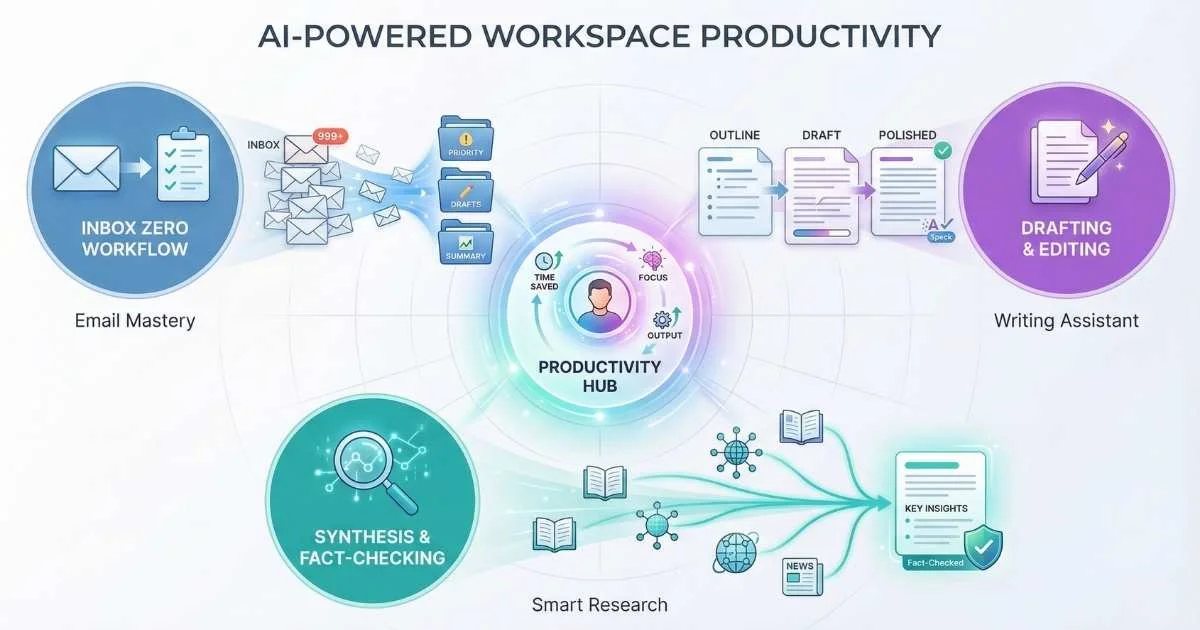
Redefining Daily Workflows
The modern workday is often consumed by repetitive tasks: triaging overflowing inboxes, summarizing long threads, drafting reports, and compiling research. AI tools have evolved from novelty text generators into essential productivity engines that reclaim this lost time.
The impact is measurable. Users employing AI for routine information processing report significant time savings—often reclaiming 1-2 hours daily. This isn’t just about faster typing; it’s about offloading cognitive load.
When AI triages emails, summarizes meetings, and compiles initial research, human effort shifts to high-value decision making and strategy.
This guide outlines practical, tested workflows for integrating AI into daily tasks:
In this guide, I’m going to show you exactly how I transformed my daily workflow—and how you can do the same. We’ll cover email, writing, research, meetings, and everything in between. By the end, you’ll have a complete playbook for becoming dramatically more productive without working more hours.
Here’s what you’ll learn:
- Transform email from a time sink to a 5-minute daily task
- Draft professional documents in minutes, not hours
- Conduct research that would take days in just hours
- Analyze data and create spreadsheet formulas with natural language
- Never take meeting notes again (and still know everything that happened)
- Protect deep work time with AI-powered focus tools
- Set up AI agents that work autonomously on your behalf
- Build automated workflows that connect all your tools
- Choose the right AI tools for your budget and ecosystem
- Use AI productively on mobile, desktop, and with voice
Let’s dive in.
The Productivity Paradox: More Tools, Less Time
Here’s something that’s always frustrated me: we have more productivity tools than ever, yet we all feel busier than ever. More apps, more notifications, more information—but somehow less time for the work that actually matters.
AI changes this equation fundamentally.
For the first time, we can automate cognitive tasks, not just physical ones. The repetitive thinking—drafting routine emails, summarizing long documents, synthesizing research—that’s exactly what LLMs excel at.
Where Your Time Actually Goes
Before we dive into solutions, let’s look at the problem. According to research from McKinsey & Company’s 2023 report “The Economic Potential of Generative AI,” knowledge workers spend their time something like this:
%%{init: {'theme': 'base', 'themeVariables': { 'primaryColor': '#4f46e5', 'primaryTextColor': '#ffffff', 'primaryBorderColor': '#3730a3', 'lineColor': '#6366f1', 'fontSize': '16px' }}}%%
pie showData
    title "Where Knowledge Workers Spend Their Time"
    "Email & Communication" : 28
    "Searching for Information" : 20
    "Administrative Tasks" : 15
    "Meetings" : 22
    "Deep Work" : 15
Look at that chart. Only 15% of the typical knowledge worker’s day goes to deep, focused work. The rest? Communication, searching, admin, meetings. These are exactly the areas where AI can have the biggest impact.
The Research on AI Productivity Gains
Multiple studies have now quantified the productivity impact of AI:
| Study | Finding | Source |
|---|---|---|
| McKinsey 2023 | Knowledge workers could save 60-70% of time on communication tasks | McKinsey Global Institute |
| McKinsey 2025 | 75% of knowledge workers now use AI informally; 94% familiar with genAI tools | McKinsey Digital Report |
| Harvard Business School 2023 | Consultants using AI completed 12% more tasks, 25% faster, with 40% higher quality | Dell’Acqua et al., Working Paper |
| MIT 2024 | Customer support agents with AI resolved 14% more issues per hour | Brynjolfsson, Li, & Raymond |
| Stanford HAI 2023 | AI-assisted coders completed tasks 55% faster | GitHub Copilot Research |
| WEF 2025 | 44% of workers’ core skills disrupted by 2027; 78 million net new jobs by 2030 | Future of Jobs Report 2025 |
The consistent finding: 35-50% productivity gains when knowledge workers use AI assistance effectively. That’s not marginal—that’s transformational. For a detailed comparison of productivity AI tools, see the ChatGPT vs Claude vs Gemini comparison.
The Key Mindset Shift
But here’s what most people get wrong: they think of AI as either a magic wand or a threat. Neither is true.
Think of AI like a very capable intern. Eager, fast, knowledgeable, but needs supervision. You wouldn’t send an intern’s work directly to a client without reviewing it. You wouldn’t trust an intern’s research without verification. But you’d absolutely give them the first pass on routine tasks so you can focus on the judgment calls.
That’s the model: AI is a collaboration partner, not a replacement.
I don’t send AI-drafted emails without reviewing them. I don’t trust AI research without verification. I use AI to handle the 80% that’s routine so I can focus my human judgment on the 20% that matters most. For tips on getting better results, see the Prompt Engineering Fundamentals guide.
Let’s look at how this works in practice, domain by domain.
AI for Email: From Inbox Zero to Inbox Hero
If there’s one area where AI has genuinely changed my life, it’s email. I used to spend 2+ hours daily in my inbox. Now? About 20 minutes.
The Email Problem
Let’s be honest about what email has become:
- 121 emails per day - According to Radicati Group’s Email Statistics Report 2023, the average business professional receives 121 emails daily
- 28% of the workday - McKinsey’s research found workers spend 28% of the workweek managing email—that’s over 2 hours daily
- Context switching - Cal Newport’s research in “A World Without Email” shows each email interruption costs 23 minutes to recover focus
- Decision fatigue - Each email requires a micro-decision about priority and response, depleting your cognitive resources
Email is exhausting not because any single email is hard, but because there are so many of them, each demanding a little slice of your attention.
Why Email Is Perfect for AI
Here’s the good news: email is perfect for AI automation. Why?
- Patterns everywhere - Most emails follow recognizable structures (meeting requests, status updates, questions, etc.)
- Repetitive responses - How many times have you written “Thanks for reaching out, let me get back to you on that”?
- Summarizable content - Long threads can almost always be condensed to key points
- Low stakes for errors - Unlike legal contracts, a slightly imperfect email draft is easily fixable
Think of it like this: Email AI is like having a personal assistant who pre-reads your mail, throws away the junk, drafts responses to the routine stuff, and hands you the few things that actually need your brain.
Email Composition: Write Better, Write Faster
The simplest place to start is drafting emails with AI assistance. Here’s my go-to approach:
Instead of staring at a blank compose window, I tell AI what I’m trying to accomplish:
Context: I'm a product manager. This is going to my development team lead who I work with closely.

Purpose: I need to request a 2-week timeline extension on our feature launch.

Key points:
- New compliance requirements came in last week
- Need additional security review
- Original timeline wasn't realistic anyway
- Propose new deadline of March 15

Tone: Professional but casual—we have a good working relationship

Write me this email.
In about 10 seconds, I get a complete draft that’s better than what I would have written if I’d spent 10 minutes on it. Then I tweak a few words to match my voice, and hit send.
What AI email composition gives you:
- Tone adjustment - Turn your frustrated first draft into diplomacy
- Length optimization - Expand bullets into paragraphs, or condense rambling into conciseness
- Multilingual - Draft in your language, send in theirs
- Response options - Get three versions and pick the best one
Email Summarization and Triage
This is the real game-changer for me. When I open my inbox now, I don’t read every email. I ask AI to tell me what matters.
My morning triage prompt:
Summarize this email thread:
1. Main topic and outcome
2. Key decisions made
3. Action items with owners and deadlines
4. Any unresolved questions

[Paste email thread]
That 15-email thread about the product launch? Summarized into 4 bullet points. The back-and-forth between legal and marketing? Distilled to the one decision that actually needs my input.
I also use AI for weekly email digests: “What mattered this week?” It’s like having an executive assistant who reads everything and tells you what you need to know.
Email Platform Integrations
You don’t even need to copy-paste between your inbox and ChatGPT. Modern email tools have AI built right in:
| Tool | Platform | Key Features | Pricing |
|---|---|---|---|
| Gmail + Gemini 3 | Gmail | Smart compose, personalized replies, “Help me schedule” meeting booking, Day Ahead briefings via CC assistant, thread summaries | Free/Workspace |
| Outlook Copilot | Outlook | ”Work IQ” memory across conversations, GPT-5 integration, file attachment understanding, drafting, voice commands | Microsoft 365 |
| Superhuman AI | Superhuman | Agentic AI drafting across inbox/calendar/web, “Ask AI” sidebar, Grammarly integration (acquired 2025) | $30/month |
| Spark +AI | Spark Mail | Quick replies, summaries | $5-8/month |
| Shortwave | Web/Apps | AI Assistant, smart bundling, thread-first design, auto-labeling | Free/$10/month |
I personally use Gmail with Gemini for everyday email and Superhuman for when I need to blast through a hundred messages quickly. The right choice depends on your workflow and budget.
The 80/20 Rule for AI Email
Here’s my philosophy: AI for the 80%, human touch for the 20%.
- Routine updates? AI drafts it, I glance and send
- Important client communication? AI drafts it, I carefully review and personalize
- Sensitive situations? I write it myself, maybe ask AI to review for tone
And one critical rule: always review before sending. AI doesn’t know that Jennifer from accounting just lost her dog, so your usual cheery tone might be inappropriate. That’s the human judgment that AI can’t replace.
💡 Best Practice: Never paste confidential information into public AI tools. For sensitive business email, use enterprise-tier AI with appropriate data handling.
AI for Writing: Your Always-Available Writing Partner
If email is where AI saves me the most time, writing is where AI has improved my output quality the most.
The Writing Spectrum
Not all writing is the same, and AI helps differently at each level:
%%{init: {'theme': 'base', 'themeVariables': { 'primaryColor': '#4f46e5', 'primaryTextColor': '#ffffff', 'primaryBorderColor': '#3730a3', 'lineColor': '#6366f1', 'fontSize': '16px' }}}%%
flowchart LR
    A["Quick Tasks<br/>Social posts, Slack messages"] --> B["Medium Tasks<br/>Blog posts, reports"]
B --> C["Complex Tasks<br/>Long-form, creative writing"]- Quick tasks - Social posts, Slack messages, short updates → AI can often handle 90% of this
- Medium tasks - Blog posts, reports, proposals → AI provides structure and first drafts
- Complex tasks - Long-form content, documentation, creative writing → AI is a brainstorm partner and editor
The Blank Page Is Dead
Here’s my favorite thing about AI writing assistance: I never face a blank page anymore.
Even when I’m writing something deeply personal or creative, I start by asking AI to give me a structure:
Document Type: Quarterly business review presentation
Audience: Executive leadership, limited technical knowledge
Purpose: Secure budget approval for Q2 initiatives

Outline:
- Q1 Results Summary
- Market Opportunity Analysis
- Proposed Q2 Initiatives
- Resource Requirements
- Expected ROI

Tone: Confident but not arrogant, data-driven
Length: 15 slides worth of talking points

Generate a complete first draft.
I get a solid framework in 30 seconds. Then I replace the generic language with our specific numbers, add the stories and examples that bring it to life, and polish the transitions. What used to take 3 hours now takes 45 minutes—and the result is better because I’m spending my energy on the high-value parts instead of figuring out structure.
Editing and Refinement
AI isn’t just for first drafts. Some of my most valuable AI interactions are when I’ve already written something and want to make it better.
My go-to editing prompts:
| Request | What It Does | When I Use It |
|---|---|---|
| ”Make this more concise” | Cuts fluff, tightens writing | When I’m rambling |
| ”Make this more professional” | Formalizes tone | Casual drafts for business |
| ”Simplify for a general audience” | Removes jargon | Technical content for executives |
| ”Add more detail to the ROI section” | Expands specific parts | When reviewer asks for more |
| ”Fix the flow between paragraphs” | Improves transitions | When reading feels choppy |
| ”Check for logical inconsistencies” | Identifies contradictions | Complex arguments |
The key insight: AI is tireless and patient. I can ask for five different versions, try each one, and combine the best parts. That kind of iteration would be exhausting to do myself, but AI makes it effortless.
Content Repurposing: Write Once, Publish Everywhere
This is a productivity multiplier I didn’t expect. Once you have good content, AI can transform it for different channels.
%%{init: {'theme': 'base', 'themeVariables': { 'primaryColor': '#4f46e5', 'primaryTextColor': '#ffffff', 'primaryBorderColor': '#3730a3', 'lineColor': '#6366f1', 'fontSize': '16px' }}}%%
flowchart TB
    A["Original Content<br/>(Blog Post)"] --> B["LinkedIn Post"]
    A --> C["Twitter Thread"]
    A --> D["Email Newsletter"]
    A --> E["Podcast Script"]
    A --> F["Executive Summary"]
    A --> G["Presentation Slides"]
That blog post you just wrote? Ask AI to:
- Turn it into a LinkedIn post (under 3000 characters, hook-first)
- Create a Twitter thread (8-10 tweets with the key insights)
- Draft an email newsletter version (more personal, includes a CTA)
- Extract the talking points for a podcast discussion
- Summarize into executive bullet points
One piece of quality thinking becomes seven pieces of content. This is how thought leaders seem to be everywhere—they’re not writing seven times as much; they’re repurposing strategically.
Writing Tools Comparison
| Tool | Best For | Key Features | Pricing |
|---|---|---|---|
| ChatGPT (GPT-5.2) | Versatile writing | Formatting blocks for emails/drafts, native Mac app with “Work with Apps”, enhanced long-context, agentic tool-calling | Free/$20+/month |
| Claude (Opus 4.5) | Nuanced, long content | ”Tacit knowledge” memory across sessions, extended thinking with web search, 200K+ context, autonomous work | Free/$20/month |
| Gemini 3 Pro | Google integration | Multimodal processing, Workspace Studio agents, Docs/Sheets integration, real-time collaboration | Free/Workspace |
| Jasper | Marketing copy | Brand voice, templates | $39+/month |
| Copy.ai | Sales/marketing | Workflows, GTM content | Free/$49+/month |
| Notion AI | Integrated workspace | Custom AI agents, GitHub integration, HIPAA-compliant, GPT-5/Claude Sonnet 4 models, AI formula writing | $10/month |
| Grammarly | Editing/polish | Real-time suggestions, Superhuman integration | Free/$12+/month |
My setup: Claude for long-form writing and nuanced content, ChatGPT for quick tasks and brainstorming, Grammarly running in the background catching typos.
Maintaining Your Voice
The biggest fear people have about AI writing: “It’ll sound like AI, not me.”
This is valid, and requires active management. Here’s how I handle it:
- Train AI with examples - “Here are three emails I’ve written. Match this style.”
- Create style prompts - I have a saved prompt that describes my writing voice that I prepend to requests
- Always edit - AI does the structure, I add the personality
- Keep the distinctive stuff - Let AI handle transitions; I write the jokes and personal anecdotes
The goal isn’t for AI to replace your voice—it’s for AI to handle the scaffolding so you can focus on what makes your writing yours.
AI for Research: From Hours to Minutes
Research used to be my least favorite task. Spend an hour googling, open twenty tabs, read through everything, try to synthesize it into something coherent, realize half the tabs are outdated, start over…
Now? Research is actually enjoyable because AI handles the tedious parts.
Why Research Is Ripe for AI Transformation
Traditional research is inefficient for a simple reason: you’re doing the same cognitive work as thousands of people before you.
Every time someone researches “best project management methodologies” or “how to improve team communication,” they:
- Read the same articles
- Extract the same key points
- Synthesize the same conclusions
AI models have already “read” most of this content during training. Instead of you doing the extraction work, AI can give you a synthesized starting point that you then verify and build upon.
It’s like the difference between:
- Walking to every house in a neighborhood to collect information (old way)
- Calling the neighborhood association who already compiled the data (AI way)
The Research Transformation: Old vs. New
Old research workflow:
- Google the topic
- Open 20 tabs
- Skim each article (many turn out to be irrelevant)
- Take scattered notes
- Try to synthesize
- Realize you missed something important
- Go back and search more
- Finally write something (exhausted)
AI-assisted research workflow:
- Ask AI a structured research question
- Get an initial synthesis (with caveats about verification)
- Deep dive into only the most relevant sources
- Ask follow-up questions for missing pieces
- Have AI help synthesize into final format
What took 4 hours now takes 30-45 minutes. And honestly? The quality is better because I’m not cognitively depleted by the time I start writing.
My Research Prompt Template
Here’s the prompt structure I use for almost all research tasks:
I'm researching [topic] for [purpose].

Please provide:
1. An overview of the key concepts
2. Major perspectives or schools of thought
3. Recent developments (last 2-3 years)
4. Key statistics or data points with sources
5. Potential sources for deeper reading
6. Common misconceptions to avoid

Audience: [expertise level]
Preferred format: [bullets/paragraphs/outline]
This gives me a comprehensive starting point. From there, I can ask follow-up questions: “Tell me more about the second perspective.” “What are the counterarguments?” “Give me more recent data on this.”
AI-Powered Research Tools
Different research tasks call for different tools:
| Tool | Specialty | Key Feature | Best For |
|---|---|---|---|
| Perplexity AI | Search + synthesis | Comet browser with AI assistant, Claude Sonnet 4.5 model, WhatsApp integration, real-time citations ($20B valuation) | Fact-based research |
| Consensus | Academic papers | Science-backed answers | Evidence-based research |
| Elicit | Literature review | Paper discovery + extraction | Systematic reviews |
| SciSpace | PDF analysis | Paper explanation | Reading academic papers |
| NotebookLM | Document analysis | Gemini 3 integration, Data Tables, infographics/slide deck generation, AI video summaries, 600 sources/notebook, mobile app | Personal knowledge base |
| ChatGPT + Browse | Web research | Real-time information with GPT-5.2 | General research |
| Gemini Deep Research | Comprehensive research | Autonomous multi-step reasoning with Gemini 3 | Deep dives |
For quick factual questions, I use Perplexity—it cites sources, so I can verify. Their new Comet browser even preserves chat context when you click through to sources. For deep research projects, I use Gemini’s Deep Research Agent with Gemini 3, which can autonomously research a topic over 10-15 minutes and compile a comprehensive report. NotebookLM has also become indispensable—it now generates infographics and slide decks directly from your sources. For more on how these tools work under the hood, see the guide on RAG, Embeddings, and Vector Databases.
Competitive Analysis with AI
One of my most common research tasks is competitive analysis. Here’s the prompt I use:
I need a competitive analysis for [our company/product].

Key competitors: [Company A, Company B, Company C]

For each competitor, analyze:
1. Value proposition
2. Key features/products
3. Pricing model
4. Target customer
5. Strengths and weaknesses
6. Recent news or developments

Present in a comparison table format with [our product] for context.
I get a structured analysis in about 30 seconds. Then I verify the key facts (AI can be wrong about specifics), add our internal data, and I’ve got a deliverable competitive analysis in a fraction of the time.
The Verification Imperative
Here’s where I need to be very direct: AI can and will get things wrong in research. This is especially true for:
- Specific statistics and numbers
- Citations and sources (AI can hallucinate these)
- Recent events (training data cutoffs)
- Niche or specialized topics
My verification workflow:
%%{init: {'theme': 'base', 'themeVariables': { 'primaryColor': '#4f46e5', 'primaryTextColor': '#ffffff', 'primaryBorderColor': '#3730a3', 'lineColor': '#6366f1', 'fontSize': '16px' }}}%%
flowchart LR
    A["Research Question"] --> B["AI Initial Query"]
    B --> C["Quick Overview"]
    C --> D{"Critical Info?"}
    D -->|Yes| E["Verify with Primary Sources"]
    D -->|No| F["Use with Attribution"]
    E --> G["Cross-Reference"]
    G --> H["Final Synthesis"]
    F --> H
My rules:
- Always verify statistics that will be cited
- Always check that sources actually exist
- Always cross-reference critical facts
- Always note the recency of information
- Use AI for speed, traditional sources for depth
Treat AI research like a really smart research assistant who occasionally makes things up. You’d appreciate their work, but you’d spot-check the important stuff.
AI for Data Analysis and Spreadsheets
Here’s a productivity area most people overlook: spreadsheets and data analysis. If you work with numbers—budgets, reports, forecasts, dashboards—AI can transform hours of work into minutes.
Why Data Analysis Is Ripe for AI
Traditional spreadsheet work involves a lot of friction:
- Remembering (or Googling) the right formula
- Cleaning messy data manually
- Creating charts that actually communicate insights
- Explaining complex calculations to stakeholders
AI eliminates most of this friction. Instead of writing formulas, you describe what you want. Instead of manually cleaning data, AI detects and fixes inconsistencies.
AI-Powered Spreadsheet Tools
| Tool | Platform | Key Features | Best For |
|---|---|---|---|
| Microsoft Copilot in Excel | Excel (Microsoft 365) | Natural language formulas, data analysis, chart generation, insights | Enterprise Excel users |
| Google Sheets + Gemini | Google Sheets | Formula generation, data cleaning, Duet AI integration | Google Workspace users |
| Formula Bot | Excel/Sheets add-on | Natural language to formulas, explanations | Quick formula help |
| GPTExcel | Excel/Sheets | AI formula generation, VBA scripts, SQL queries | Power users |
| Akkio | Standalone/integrations | No-code predictive analytics, forecasting | Business analysts |
| Numerous.ai | Google Sheets add-on | AI functions directly in cells, batch processing | Marketing/sales data |
| Rows | Web-based | AI-native spreadsheet, data enrichment, integrations | Modern data workflows |
Practical Use Cases
Natural language formulas:
Instead of typing =SUMIFS(B:B,A:A,"Sales",C:C,">2024-01-01"), just say:
“Sum column B where column A equals ‘Sales’ and the date in column C is after January 2024”
Instant data cleaning:
“Remove duplicates, standardize phone number formats, and fill missing city names based on zip codes”
Automated insights:
“Analyze this sales data and tell me the top 3 trends I should pay attention to”
Chart generation:
“Create a chart showing monthly revenue growth with a trend line, formatted for an executive presentation”
My Data Analysis Prompt Template
I have a spreadsheet with [describe your data].

I need to:
1. [Specific analysis or calculation]
2. [Desired output format]
3. [Any specific constraints]

Please provide:
- The formula(s) I need
- Step-by-step explanation
- Any data cleaning I should do first
AI for Business Intelligence
Beyond spreadsheets, AI is transforming business intelligence:
| Tool | What It Does | AI Features |
|---|---|---|
| Power BI + Copilot | Microsoft BI platform | Natural language queries, auto-generated insights, report creation |
| Tableau + Einstein | Salesforce BI | Predictive analytics, smart recommendations, natural language Q&A |
| ThoughtSpot | Search-driven analytics | AI-powered search, SpotIQ automated insights |
| Zoho Analytics + Zia | SMB-friendly BI | Conversational analytics, anomaly detection |
The pattern: instead of building complex queries or waiting for analysts, you can ask questions in plain English and get instant answers.
When to Use AI for Data vs. Do It Yourself
| Scenario | AI Approach | Manual Approach |
|---|---|---|
| Quick one-off analysis | ✅ Describe what you need | ❌ Time-consuming |
| Repeatable reports | ⚠️ Use AI to build template, then automate | ✅ Once built, efficient |
| Critical financial data | ⚠️ AI assists, human verifies | ✅ Full control |
| Exploratory analysis | ✅ Rapid hypothesis testing | ❌ Slow iteration |
| Complex statistical models | ⚠️ AI can help, but verify | ✅ Expert oversight |
💡 Pro Tip: Always verify AI-generated formulas with a few test cases before applying to critical data. AI can misunderstand your intent, especially with complex logic.
AI for Meetings: Never Take Notes Again
I used to dread note-taking during meetings. Try to capture what’s said → miss the next point → lose the thread → end meeting with incomplete notes → can’t remember what was actually decided.
Now I show up fully present, participate actively, and still have comprehensive documentation afterwards.
The Meeting Problem—By the Numbers
Let’s be honest about what meetings cost us:
- 25+ hours per week - Microsoft’s Work Trend Index 2023 found the average professional spends 25 hours per week in meetings (up 3x since 2020)
- $37 billion annually - Harvard Business Review estimates unproductive meetings cost U.S. businesses $37 billion per year
- Divided attention - You can take comprehensive notes OR participate fully—not both
- Lost action items - Verbal commitments that no one writes down, then forgotten by end of day
- Context death - According to research by Ebbinghaus, we forget 50% of new information within an hour, 90% within a week
Why Meetings Are a Productivity Goldmine for AI
Meetings have characteristics that make them ideal for AI assistance:
- Speech-to-text is solved - Transcription accuracy now exceeds 95% for clear audio
- Structure is predictable - Most meetings have intros, discussions, decisions, and action items
- Summarization is straightforward - A 60-minute meeting can almost always be summarized in 2 minutes of reading
- High ROI on time saved - If you attend 10 meetings per week and save 20 minutes of note-taking each, that’s 3+ hours weekly
AI meeting assistants solve all of these problems—and create a searchable archive of your organization’s decisions.
AI Meeting Assistants
| Tool | Key Features | Integrations | Pricing |
|---|---|---|---|
| Otter.ai | AI Meeting Agent (voice-activated, joins calls on your behalf), transcription, action items, HIPAA compliant, French/Spanish support, MCP server for AI-to-AI communication | Zoom, Teams, Meet, Salesforce, HubSpot, Slack, Notion | Free/$10+/month |
| Fireflies.ai | 95% accuracy across 100+ languages, AI voice agents, 200+ agentic apps for workflows, Perplexity-powered real-time web search, mobile apps | All major platforms, CRM integrations | Free/$10+/month |
| Fathom | Notes, highlights, summaries | Zoom | Free/$15+/month |
| Grain | Clips, highlights, insights | Zoom, Meet | Free/$19+/month |
| tl;dv | Recording, summaries, CRM sync | Meet, Zoom | Free/$20+/month |
| Avoma | Revenue intelligence, coaching | Sales platforms | $49+/month |
I use Otter.ai for my routine meetings. Their new AI Meeting Agent can even join calls on your behalf, answer questions in real-time based on your company’s meeting history, and schedule follow-ups through voice commands. It generates a summary with action items within minutes of the meeting ending.
What You Get
When your meeting ends, you receive:
- Full transcription - Every word captured and searchable
- Automatic summary - Key discussions in bullet points
- Action item extraction - Who committed to what, with context
- Topic timestamps - Jump to specific discussions
- Speaker identification - Who said what
- Highlight clips - Share key moments without the full recording
The searchable archive is invaluable. “What did we decide about pricing in the March 15th meeting?” I can find it in seconds.
Post-Meeting Processing
Even with a meeting assistant, I often want to transform the output into different formats. Here’s my go-to prompt:
Here is a meeting transcript:

[Paste transcript]

Please create:
1. 3-sentence executive summary
2. Key decisions made (bullet points)
3. Action items with owners and deadlines
4. Unresolved questions for next meeting
5. Follow-up email draft to send to attendees
One meeting transcript becomes five useful artifacts:
- Executive summary for leadership who weren’t there
- Decision log for the project record
- Action items to paste into our task tracker
- Questions to add to next meeting’s agenda
- Follow-up email ready to send
Privacy and Consent
A quick note on ethics and legality: always inform participants that you’re recording.
- Check local laws (one-party vs. two-party consent states/countries)
- Make recording visible (most tools show a bot joining the call)
- Use enterprise plans for sensitive meetings (better data handling)
- Consider self-hosted options for highly confidential discussions
My practice: I mention at the start of meetings that I’m using Otter for notes, and invite anyone who objects to let me know. In two years, no one ever has.
Personal Productivity: Your AI Digital Assistant
So far, we’ve focused on specific work tasks. But AI can help with your broader personal productivity too—and this is where things get really interesting.
The “Second Brain” Concept
There’s a popular productivity concept called “Building a Second Brain” (coined by Tiago Forte): the idea of offloading memory and context to external systems so your mind can focus on thinking, not remembering.
AI supercharges this concept. Instead of just storing information externally, AI can:
- Process your stored information on demand
- Connect ideas across your notes and documents
- Retrieve relevant context when you need it
- Summarize large amounts of material into actionable insights
It’s the difference between a filing cabinet (static storage) and a research assistant (active participant).
Scheduling and Time Management
Calendar AI tools have become remarkably sophisticated. The best ones go beyond simple scheduling to actually optimize how you spend your time:
| Tool | What It Does | Why It’s Powerful |
|---|---|---|
| Reclaim.ai | Auto-schedules tasks, protects focus time, Outlook & Google support | Defends deep work blocks, travel timezone support, custom branded scheduling links, Reclaim Recapped year-in-review insights, improved Slack integration |
| Clockwise | Optimizes team calendars for flow | Creates meeting-free blocks across teams |
| Motion | AI task + calendar management | Automatically reschedules when priorities change |
| Cal.com AI | Smart scheduling links | Finds optimal times based on your patterns |
I use Reclaim to automatically schedule recurring tasks (weekly review, 1:1s, deep work blocks) and protect them from meeting creep. It’s like having a chief of staff managing my calendar.
For one-off scheduling decisions, I just ask ChatGPT or Claude:
I have these commitments this week:
[List]

And I need to fit in:
- 3 hours of deep work on the proposal
- Prep for Thursday's board meeting
- A 1-hour call with a customer (flexible when)

What's the optimal schedule? Consider my energy levels—I'm sharpest in the mornings.
Personal Decision Making
AI is surprisingly helpful for personal decisions. Not because it knows the right answer, but because it helps me think through options systematically.
I'm deciding between [Option A] and [Option B].

Context: [My situation, constraints, priorities]

Please help me analyze:
1. Pros and cons of each option
2. Key factors I should consider
3. Questions I should answer before deciding
4. Your recommendation with reasoning
I’ve used this for job decisions, major purchases, vacation planning, and more. The AI doesn’t tell me what to do—it helps me think more clearly about what I already know.
Learning and Skill Development
AI is the best personal tutor I’ve ever had. Available 24/7, infinitely patient, adjusts to my level.
Why AI excels at tutoring:
- No embarrassment - You can ask “stupid” questions without judgment
- Infinite patience - It will explain the same concept 12 different ways until one clicks
- Personalization - Tell it your background and learning goals, get tailored explanations
- Active recall - You can ask it to quiz you, the most effective learning technique
| Learning Goal | Best AI Approach | Example Prompt |
|---|---|---|
| New subject overview | Big picture first | ”Explain X as if I’m starting from zero. What’s the 80/20 I need to know?” |
| Deeper understanding | Analogies and connections | ”Explain X using an analogy to something I already know: [domain]“ |
| Skill practice | Progressive exercises | ”Give me 5 exercises for Y with increasing difficulty. Start easy.” |
| Knowledge gaps | Prerequisites | ”What should I learn before Z? In what order?” |
| Retention | Active recall | ”Quiz me on what we discussed. Don’t give hints.” |
| Application | Context-specific | ”How do I apply X to my specific situation: [detailed context]” |
I’ve used AI to learn about investing fundamentals (had it explain P/E ratios five different ways), improve my Spanish (conversational practice at 11 PM), understand machine learning concepts (with analogies to cooking, which I know), and prep for difficult conversations (role-playing both sides).
Pro tip: The best way to learn with AI is to teach it back. After studying something, explain it to AI and ask it to point out gaps or errors in your understanding. This is called the Feynman Technique, and AI makes it practical.
AI for Focus and Deep Work
Here’s an irony: AI can cause distractions (endless chat threads, notification creep), but AI can also protect your focus better than any tool before.
AI-powered focus tools:
| Tool | What It Does | Why It Works |
|---|---|---|
| Reclaim.ai | Defends focus blocks automatically | Reschedules meetings around your deep work time |
| Clockwise | Team calendar optimization | Creates meeting-free blocks across your whole team |
| Focus@Will | AI-curated focus music | Selects music scientifically proven to boost concentration |
| RescueTime | Productivity tracking + blocking | AI analyzes your habits and blocks distractions during focus time |
| Freedom | Intelligent distraction blocking | Blocks distracting sites/apps, learns your patterns |
| Serene | Single-task focus sprints | Encourages deep work in focused sessions |
| Krisp | AI noise cancellation | Removes background noise for distraction-free meetings |
My focus protection strategy:
- Morning block (7:30-9:00 AM): Reclaim automatically protects this—no meetings can be scheduled
- Notification pause: Calendar AI detects when I’m in deep work and pauses Slack
- Focus music: Focus@Will running in background, tuned to my productivity patterns
- Environment: Krisp on for any calls, eliminating background distractions
The result? I now get 2-3 hours of genuine deep work daily, up from maybe 45 minutes before AI tools.
AI-Powered Task Management
Beyond scheduling, AI is transforming how we manage tasks:
| Tool | Key Features | Best For |
|---|---|---|
| ClickUp AI (ClickUp Brain) | Predictive task assignment, AI writing in tasks, automated project workflows | Teams and complex projects |
| Todoist AI | Smart scheduling, natural language task creation, priority suggestions | Individual productivity |
| Taskade | AI-powered project templates, collaborative task AI, mind maps | Team brainstorming + execution |
| Motion | Auto-scheduling tasks around meetings, deadline-aware rescheduling | Calendar-integrated task management |
| Sunsama | Daily planning AI, timeboxing suggestions, cross-app task sync | Mindful daily planning |
How AI task management differs:
- Traditional: You organize tasks → You remember to check them → You reschedule when things slip
- AI-powered: You dump tasks → AI organizes by priority → AI reschedules automatically when conflicts arise
The mental load reduction is significant. I no longer worry about “did I forget something?”—my task AI surfaces what matters based on deadlines, priorities, and my calendar.
AI Voice Assistants: Hands-Free Productivity
Voice is the fastest interface. In 2025, AI voice assistants have become genuinely useful for productivity:
The Big Three (transformed in 2025):
| Assistant | Key 2025 Features | Best For |
|---|---|---|
| Siri (Apple Intelligence) | Personal context from emails/messages, onscreen awareness, deep app integration | Apple ecosystem users |
| Alexa+ | Generative AI conversations, document processing, proactive assistance, home automation | Smart home + shopping integration |
| Google Gemini Voice | ”CC” daily briefings, Workspace integration, real-time translation | Google Workspace users |
Practical voice productivity use cases:
- Morning briefing: “Hey Siri, what’s on my calendar today and summarize my important emails”
- Hands-free drafting: “Alexa, draft a reply to John’s email saying I’ll have the report by Friday”
- Quick research: “Hey Google, what’s the current market size for AI productivity tools?”
- Meeting prep: “Summarize my notes about Project Alpha before my 3 PM meeting”
- Task capture: “Remind me to follow up with Sarah about the proposal when I get to the office”
Why voice matters for productivity:
Voice removes the “friction of switching.” Instead of:
- Stop what you’re doing
- Pick up phone/switch to computer
- Open app
- Type query
- Return to original task
You just… speak. That friction reduction compounds across dozens of daily micro-tasks.
💡 Pro Tip: Voice works best for capture and queries, not complex composition. Use voice to dump ideas and get quick answers, then switch to keyboard for anything requiring precision.
The AI Personal Assistant Stack
Here’s what my personal productivity stack looks like:
%%{init: {'theme': 'base', 'themeVariables': { 'primaryColor': '#4f46e5', 'primaryTextColor': '#ffffff', 'primaryBorderColor': '#3730a3', 'lineColor': '#6366f1', 'fontSize': '16px' }}}%%
flowchart TB
    subgraph "My AI Productivity Stack"
        A["General Assistant<br/>Claude / ChatGPT"]
        B["Calendar<br/>Reclaim.ai"]
        C["Notes<br/>Notion AI"]
        D["Email<br/>Gmail + Gemini"]
        E["Research<br/>Perplexity"]
        F["Meetings<br/>Otter.ai"]
    end
    A --> B
    A --> C
    A --> D
    A --> E
    A --> F
Everything connects back to a general-purpose AI (Claude for me) that handles anything the specialized tools don’t.
Browser Extensions and Integrations: AI Everywhere
One friction point in the early days of AI productivity was context switching. You’d be writing an email, need AI help, open ChatGPT in a new tab, explain the context, get the response, copy it back…
Browser extensions solve this. They put AI right where you’re already working.
Essential Browser Extensions
| Extension | Function | Key Features | Works With |
|---|---|---|---|
| ChatGPT for Chrome | Chat sidebar | Quick prompts, page analysis | Any website |
| Monica | Multi-AI assistant | Claude, GPT, Gemini in sidebar | All LLMs |
| Sider | ChatGPT sidebar | Summarize, write, translate | ChatGPT |
| Merlin | Universal AI | Summary, social, 1-click actions | Multiple |
| MaxAI | Productivity | Write, summarize, grammar | ChatGPT |
| Glasp | Highlight + AI | Web highlights with AI summary | Social learning |
| Harpa AI | Web automation | Page reading, automation | Any website |
| Tactiq | Meeting transcription | Live meeting notes in browser | Meet, Zoom, Teams |
I use Monica because it gives me access to Claude, GPT-4, and Gemini all in one sidebar. Reading a long article? Highlight, click, get summary. Writing a LinkedIn post? Click, describe what I want, paste the draft.
Platform-Specific AI
The major productivity platforms now have AI built directly in:
Google Workspace + Gemini 3:
- Gmail: Smart compose, personalized replies with context from Drive, “Help me schedule” meeting booking, Day Ahead briefings via CC assistant
- Docs: “Help me write”, rewrite suggestions, AI-powered editing
- Sheets: Formulas from natural language descriptions, data analysis, insights
- Slides: Image generation with Nano Banana Pro, layout suggestions
- Meet: Live captions, notes, AI summaries
- Workspace Studio: Build custom AI agents for Gmail, Drive, and Chat using natural language
Microsoft 365 + Copilot:
- Outlook: Drafting, summarization, scheduling
- Word: Writing assistance, editing, formatting
- Excel: Formula generation, analysis, insights
- PowerPoint: Slide generation, design
- Teams: Meeting summaries, chat synthesis
If you’re already in one of these ecosystems, the native AI is often the most frictionless option.
Custom GPTs and Claude Projects
For tasks you do repeatedly, it’s worth creating custom AI assistants:
Custom GPTs (OpenAI):
- Email writer trained on your style
- Research assistant for your industry
- Meeting summarizer with your template
- Report generator for recurring analyses
Claude Projects:
- Upload reference documents as persistent context
- Set consistent instructions
- Maintain domain knowledge across conversations
I have a Custom GPT for drafting my weekly team updates. It knows our project names, the format my manager likes, and the kinds of details I typically include. What used to take 20 minutes now takes 3.
AI Agents and Autonomous Workflows
2025 marks a fundamental shift: from AI that responds to AI that acts. Welcome to the age of AI Agents.
What Are AI Agents?
Traditional AI: You ask a question → AI gives an answer → You act on it.
AI Agents: You give a goal → AI plans steps → AI executes them autonomously → AI reports back.
The difference is profound. Instead of you being in the loop for every action, AI agents can handle multi-step workflows independently. For a comprehensive deep dive into this paradigm, see the AI Agents guide.
%%{init: {'theme': 'base', 'themeVariables': { 'primaryColor': '#4f46e5', 'primaryTextColor': '#ffffff', 'primaryBorderColor': '#3730a3', 'lineColor': '#6366f1', 'fontSize': '16px' }}}%%
flowchart LR
    A["Traditional AI\n(Query → Response)"] --> B["You execute\nbased on response"]

    C["AI Agent\n(Goal → Plan → Execute)"] --> D["AI executes\nAutonomously"]
    D --> E["Reports results\nto you"]
Types of AI Agents in 2025
| Agent Type | What It Does | Examples |
|---|---|---|
| Agentic RAG | Autonomous research with memory and planning | Perplexity Deep Research, Gemini Deep Research |
| Computer-Using Agents (CUA) | Navigate web UIs, click buttons, fill forms | Anthropic Computer Use, OpenAI Operator |
| Voice Agents | Handle conversations with contextual understanding | Alexa+, conversational AI systems |
| Coding Agents | Write, debug, and deploy code autonomously | Claude Code, GitHub Copilot Workspace, Cursor Agent |
| Workflow Agents | Orchestrate multi-step business processes | Zapier AI Agents, Make.com AI Agents |
Real-World Agent Use Cases
Research Agent:
“Research the top 5 competitors in the AI productivity space, analyze their pricing, create a comparison table, and draft a summary email for my team.”
The agent will:
- Search for competitors
- Visit each website
- Extract pricing information
- Create a formatted comparison
- Draft and save the email
Meeting Follow-up Agent:
“After each meeting, extract action items, create tasks in ClickUp, and send a summary to attendees.”
The agent runs automatically after every meeting without your involvement.
Content Repurposing Agent:
“Take my latest blog post and create a LinkedIn post, Twitter thread, and email newsletter version.”
One input, multiple outputs—automatically.
Agent Platforms and Tools
| Platform | Agent Capabilities | Best For |
|---|---|---|
| Zapier AI Agents | Natural language workflow creation, autonomous task handling | Non-technical users |
| Make.com AI Agents | Visual workflow automation with AI decision nodes | Visual workflow builders |
| Notion AI Agents | Database automation, content creation, workspace management | Notion power users |
| Claude Projects + MCP | Document-aware persistent agents with tool access | Knowledge workers |
| Lindy | Personal AI assistant that learns your workflows | Busy professionals |
| OpenAI Assistants | Custom agents with code execution and file handling | Developers |
Setting Up Your First AI Agent
Start simple:
- Identify a repetitive workflow (email categorization, meeting prep, etc.)
- Choose a platform (Zapier for beginners, Make for visual, n8n for technical)
- Define the trigger (new email, calendar event, form submission)
- Describe the goal in natural language
- Test with examples before going live
- Refine based on results
⚠️ Important: Always review agent actions for the first few runs. AI agents can make mistakes, and those mistakes compound when automated.
AI Workflow Automation: Connecting Your Tools
If AI Agents are the brain, workflow automation platforms are the nervous system—connecting all your tools so information flows automatically.
The Automation Landscape in 2025
| Platform | Integrations | AI Features | Self-Hosted | Best For |
|---|---|---|---|---|
| Zapier | 8,000+ apps | AI Agents, 500 AI-specific apps, natural language Zap creation | ❌ No | Beginners, rapid setup |
| Make.com | 1,500+ apps | AI Agents, AI Content Extractor, Make Grid | ❌ No | Visual workflow design |
| n8n | 1,200+ nodes | LangChain integration, custom code, full AI API access | ✅ Yes | Technical teams, data control |
| Pipedream | 1,000+ apps | AI code generation, custom integrations | ✅ Yes | Developers |
| Power Automate | Microsoft 365 | Copilot integration, AI Builder | ❌ No | Microsoft ecosystem |
AI-Powered Automation Examples
Example 1: Smart Email Processing
Trigger: New email arrives
→ AI categorizes (Sales, Support, Personal, Newsletter)
→ If Sales: Extract contact info → Add to CRM → Notify sales team
→ If Support: Summarize issue → Create ticket → Auto-draft response
→ If Newsletter: Archive in reading folder
Example 2: Meeting Intelligence Pipeline
Trigger: Meeting ends (Otter.ai webhook)
→ AI summarizes transcript
→ Extract action items with owners and deadlines
→ Create tasks in project management tool
→ Send summary email to attendees
→ Log key decisions to knowledge base
Example 3: Content Research Automation
Trigger: New topic added to research queue
→ Perplexity researches topic with citations
→ AI synthesizes findings into brief
→ Sends to Notion for review
→ Notifies you on Slack when ready
Zapier vs. Make vs. n8n: How to Choose
| Factor | Zapier | Make.com | n8n |
|---|---|---|---|
| Ease of use | ⭐⭐⭐⭐⭐ Easiest | ⭐⭐⭐⭐ Visual | ⭐⭐⭐ Technical |
| Pre-built integrations | ⭐⭐⭐⭐⭐ Most | ⭐⭐⭐⭐ Many | ⭐⭐⭐ Growing |
| AI capabilities | ⭐⭐⭐⭐ Strong | ⭐⭐⭐⭐ Strong | ⭐⭐⭐⭐⭐ Most flexible |
| Complex workflows | ⭐⭐⭐ Limited branching | ⭐⭐⭐⭐⭐ Excellent | ⭐⭐⭐⭐⭐ Excellent |
| Data privacy | ⚠️ Cloud only | ⚠️ Cloud only | ✅ Self-host option |
| Cost at scale | 💰💰💰 Per task | 💰💰 Per operation | 💰 Per workflow |
My recommendation:
- Just starting? Begin with Zapier—fastest to value
- Outgrowing Zapier? Move to Make for complex visual workflows
- Need control? n8n for self-hosting and custom AI integration
Building Your First AI Automation
Starter workflow (Zapier, 15 minutes):
- Create a Zap: “When I receive an email with an attachment…”
- Add AI step: “Summarize the attachment in 3 bullet points”
- Add Slack step: “Send summary to #documents channel”
You’ve just automated document processing. That’s the power of AI automation.
Mobile Productivity: AI on the Go
The best productivity tool is the one you have with you. In 2025, mobile AI has become genuinely powerful.
Top Mobile AI Productivity Apps
| App | iOS | Android | Key Features | Best For |
|---|---|---|---|---|
| ChatGPT | ✅ | ✅ | Voice mode, vision, plugins, web browsing | General AI assistant |
| Claude | ✅ | ✅ | Extended thinking, artifacts, file analysis | Thoughtful analysis |
| Google Gemini | ✅ | ✅ | Workspace integration, screen context, Live | Google ecosystem |
| Perplexity | ✅ | ✅ | Comet browser, real-time search, citations | Mobile research |
| Otter.ai | ✅ | ✅ | AI Meeting Agent, transcription, summaries | Meeting capture |
| NotebookLM | ✅ | ✅ | Audio Overviews, source synthesis, mobile-first | Research on the go |
| Notion | ✅ | ✅ | AI writing, database queries, mobile capture | Workspace access |
| GoodNotes 6 | ✅ | ❌ | Handwriting-to-text AI, smart search | iPad note-taking |
Mobile-Specific AI Use Cases
Commute Time (Audio-Based):
- ChatGPT Voice: Practice presentations, brainstorm ideas, draft emails
- NotebookLM Audio Overviews: Learn about your research topics
- Otter.ai: Transcribe voice memos for later processing
Waiting Rooms / Quick Breaks:
- Perplexity: Quick research questions
- Claude: Analyze documents you need to review
- Gemini: Check and respond to important emails
On-Site Meetings:
- Otter.ai: Real-time transcription without laptop
- Voice memos + AI: Capture and process ideas immediately
- Camera + AI: Capture whiteboard → get structured notes
Voice-to-Text Workflows
The combination of voice input + AI processing is incredibly powerful on mobile:
Voice input: "I just finished meeting with the client. Key points: they want
to launch in Q2, budget is $50K, main concern is timeline. Need to follow up
with technical requirements by Friday."

AI processing: Creates structured notes, adds task to your task manager,
drafts follow-up email, updates CRM contact.
Pro apps for voice capture:
- Otter.ai: Best for meeting transcription
- AudioPen: Converts rambling voice notes into structured text
- Whisper Memos: Transcription + AI summaries
Mobile vs. Desktop: When to Use Each
| Task | Mobile | Desktop |
|---|---|---|
| Quick capture | ✅ Speed wins | ❌ Context switch |
| Voice queries | ✅ Natural interface | ⚠️ Awkward |
| Complex writing | ⚠️ Possible but slower | ✅ Full keyboard |
| Data analysis | ❌ Limited | ✅ Full tools |
| Meeting transcription | ✅ On-the-go | ✅ Auto-join |
| Research deep dives | ⚠️ Reading works | ✅ Multi-tab |
The ideal is a seamless flow: capture on mobile, process on mobile or desktop, and access everywhere.
The Mobile-First Tech Stack
If I had to rebuild my productivity stack for mobile-first:
- Capture: AudioPen (voice) + Apple Notes (quick text) + Camera (visual)
- AI Processing: ChatGPT or Claude for transformation
- Organization: Notion (syncs everywhere)
- Communication: Gmail + Gemini
- Research: Perplexity
- Meetings: Otter.ai
Everything syncs. Capture happens wherever I am. Deep work happens at my desk.
Let me show you what a day actually looks like when you put all these pieces together.
My AI-Powered Morning Routine
7:00 AM - Email Triage (15 min)
├── Open Superhuman, AI summaries of overnight emails
├── Quick responses drafted with AI, review and send
├── Flag 3-4 emails needing thoughtful replies for later
└── Inbox processed, mind clear

7:15 AM - Daily Planning (10 min)
├── Check calendar (Reclaim has auto-scheduled focus blocks)
├── Ask Claude: "Given these 5 priorities, what should I focus on today?"
├── Time-block the deep work
└── Ready to start

7:30 AM - First Deep Work Block (90 min)
└── Focused work on my #1 priority, AI assisting as needed
By 9:00 AM, I’ve processed all email and completed significant work on my top priority. The rest of the day is about execution and meetings.
Weekly Review Workflow
Every Friday afternoon, I spend 30 minutes reviewing my week:
- Gather inputs: Ask Otter for all my meeting summaries this week
- AI synthesis: “Based on these meetings, what were my main accomplishments, decisions, and action items?”
- Extract insights: “What patterns do you see? What might I want to do differently?”
- Plan ahead: “Given what I learned this week, what should be my priorities next week?”
- Draft updates: “Draft a brief status update for my manager with this week’s highlights”
What used to be an hour of trying to remember what happened is now a structured 30-minute reflection.
Content Creation Workflow
When I’m writing something significant (like this article), here’s my process:
%%{init: {'theme': 'base', 'themeVariables': { 'primaryColor': '#4f46e5', 'primaryTextColor': '#ffffff', 'primaryBorderColor': '#3730a3', 'lineColor': '#6366f1', 'fontSize': '16px' }}}%%
flowchart LR
    A["Idea/Brief"] --> B["AI Research"]
    B --> C["AI Outline"]
    C --> D["AI First Draft"]
    D --> E["Human Edit"]
    E --> F["AI Polish"]
    F --> G["Human Final Review"]
G --> H["Publish"]- Idea/Brief - I know what I want to say
- AI Research - Perplexity helps me gather examples, statistics, market context
- AI Outline - Claude helps structure the flow
- AI First Draft - Section by section, AI generates initial content
- Human Edit - This is where I spend most of my time: adding personality, examples from my experience, the insights AI can’t generate
- AI Polish - “Make this section more concise,” “Check the flow,” “Catch any errors”
- Human Final Review - Read through, ensure it sounds like me
- Publish
The AI handles maybe 50% of the raw writing time, but I’m making all the important decisions about what to say and how to say it.
The Hybrid Approach: When to Use AI vs. Do It Yourself
Not everything should be delegated to AI. Here’s my framework:
| Task Type | AI Role | Human Role |
|---|---|---|
| First drafts | Generate 80% | Refine 20% |
| Research | Gather and synthesize | Validate and decide |
| Editing | Catch errors, suggest improvements | Judge quality, approve |
| Creative work | Brainstorm, iterate options | Select, refine, add voice |
| Communication | Draft, optimize | Review, personalize |
| Strategic decisions | Analyze options | Make the call |
The pattern: AI handles volume and synthesis; humans handle judgment and nuance.
Best Practices and Avoiding Pitfalls
Before you rush off to implement all of this, let me share some lessons I learned the hard way.
Prompt Engineering for Productivity
You don’t need to become a prompt engineering expert, but a few principles go a long way:
- Be specific - “Write a professional email” < “Write a 3-paragraph professional email to a client explaining a delay, apologetic but confident in tone”
- Provide context - Who you are, who the audience is, what you’re trying to achieve
- Specify format - “As bullet points,” “In a table,” “As a numbered list”
- Iterate - First output is rarely perfect; refine with follow-ups
- Save good prompts - Build a personal library of what works
Quality Assurance
This is non-negotiable: always review AI output before using it.
- Check facts, especially numbers and dates
- Verify names and company-specific details
- Read for tone—AI can miss context
- “Trust but verify” as a standard practice
AI can sound confident while being wrong. That confident-sounding statistic? Made up. That citation? Might not exist. That “fact” about your competitor? Could be hallucinated.
Privacy and Security
| Data Type | Safe for AI? | What to Do |
|---|---|---|
| Public information | ✅ Yes | Use freely |
| Internal business data | ⚠️ Depends | Use enterprise plans |
| Customer PII | ❌ No | Never paste into public tools |
| Financial/legal sensitive | ❌ No | Consult compliance first |
| Trade secrets | ❌ No | Extreme caution |
Use enterprise tiers (ChatGPT Enterprise, Claude for Business, etc.) for business data—they don’t train on your inputs. Understand your company’s AI policy. When in doubt, anonymize or redact.
Common Mistakes to Avoid
Based on what I’ve seen myself and others do wrong:
- ❌ Sending AI drafts without reading them first
- ❌ Pasting confidential data into free AI tools
- ❌ Trusting AI for critical facts without verification
- ❌ Over-relying on AI for truly creative or strategic work
- ❌ Spending more time prompting than just doing the task
- ❌ Not developing your prompts over time
The Productivity Paradox to Avoid
Here’s a trap: AI can make you faster at things that maybe shouldn’t be done at all.
Before automating a task, ask: “Should this task exist?” AI can help you send twice as many emails—but maybe some of those emails shouldn’t be sent. AI can help you write more reports—but maybe some of those reports aren’t adding value.
Use AI to do the right things faster, not to do more of the wrong things.
AI Ethics and Transparency
As AI becomes more integrated into our work, we need to think about the ethical dimensions:
When to Disclose AI Use:
| Context | Disclosure Recommended? | Rationale |
|---|---|---|
| Internal emails/docs | Optional | Efficiency tool, like spell-check |
| Client deliverables | ✅ Yes, often | Sets expectations, builds trust |
| Published content | ✅ Yes | Reader transparency |
| Academic work | ⚠️ Check policies | Many institutions have specific rules |
| Legal/regulatory docs | ✅ Always | Accountability requirements |
| Job applications | ⚠️ Careful | Be authentic; use AI for polish, not fabrication |
Plagiarism and Originality Concerns:
AI-generated content isn’t plagiarized in the traditional sense—it’s synthesized from training data. But questions remain:
- Is it “your” work if AI wrote it?
- How much AI assistance before it’s no longer authentic?
- Do clients/employers expect disclosure?
My rule of thumb: If the ideas are mine and I’ve verified the facts, AI assistance is like having a very capable writing partner. If I couldn’t have written something substantially similar myself, I should disclose or reconsider.
Bias Awareness:
AI systems can perpetuate biases from their training data:
- ⚠️ Be cautious with AI-generated personas or demographic assumptions
- ⚠️ Review AI content for unintended stereotypes or slants
- ⚠️ Cross-reference AI research on sensitive topics
Responsible AI Use at Work:
- Know your company’s AI policy - Many organizations now have guidelines
- Protect confidential data - Never paste sensitive info into public tools
- Maintain human accountability - You’re responsible for what you publish/send
- Stay informed - AI capabilities and policies evolve rapidly
Getting Started: Your First AI Productivity Week
Ready to transform your workflow? Here’s a structured 5-day plan:
Day 1: Email Transformation
- Set up: Install Gmail + Gemini, Superhuman, or Shortwave
- Practice: Summarize one long email thread
- Action: Draft 3 replies with AI assistance
- Reflect: How much time did you save?
Day 2: Writing Acceleration
- Choose: Pick your AI writing partner (ChatGPT, Claude, or Gemini)
- Create: Draft one document with AI assistance
- Practice: Repurpose a piece of content into two formats
- Build: Save your first prompt template
Day 3: Research Revolution
- Try: Use Perplexity for a real research question
- Compare: How does it differ from traditional Google?
- Synthesize: Have AI summarize findings into a brief
- Verify: Fact-check at least one AI claim
Day 4: Meeting Mastery
- Install: Set up Otter.ai or Fireflies.ai
- Record: Use AI for one meeting’s transcription
- Generate: Create summary and action items
- Send: Draft follow-up email with AI
Day 5: Integration and Expansion
- Install: Add 1-2 browser extensions
- Connect: Link workflows between tools
- Create: Set up a custom GPT or Claude project
- Automate: Build one automated workflow
Ongoing Development
| Time Period | Focus | Goal |
|---|---|---|
| Week 1 | Core setup | Email, writing, basic research |
| Week 2 | Meetings | AI meeting assistant, summaries |
| Week 3 | Integration | Browser extensions, connections |
| Week 4 | Optimization | Custom prompts, templates |
| Month 2 | Automation | Zapier/Make workflows |
| Month 3 | Advanced | Custom GPTs, specialized tools |
Measuring Progress
Track what matters:
- Time: How long do tasks take now vs. before?
- Quality: Is your output better?
- Energy: Are you less mentally fatigued?
- Reinvestment: What are you doing with saved time?
The goal isn’t just faster—it’s better work with less effort, freeing you for what matters most.
Choosing Your AI Tool Stack
With so many options, how do you choose? Here’s my framework:
Step 1: Identify Your Ecosystem
%%{init: {'theme': 'base', 'themeVariables': { 'primaryColor': '#4f46e5', 'primaryTextColor': '#ffffff', 'primaryBorderColor': '#3730a3', 'lineColor': '#6366f1', 'fontSize': '16px' }}}%%
flowchart TD
    A["What's your primary ecosystem?"] --> B{"Google Workspace?"}
    B -->|Yes| C["Gemini-first stack"]
    B -->|No| D{"Microsoft 365?"}
    D -->|Yes| E["Copilot-first stack"]
    D -->|No| F["Flexible stack\n(ChatGPT/Claude + integrations)"]
Step 2: Budget Tiers
| Budget | Recommended Stack |
|---|---|
| Free | ChatGPT Free, Claude Free, Perplexity Free, Google Gemini, Otter Free tier |
| $20-50/month | ChatGPT Plus OR Claude Pro, Perplexity Pro, Otter Pro, one automation tool |
| $100+/month | Multiple AI subscriptions, Superhuman, full automation stack, team tools |
| Enterprise | ChatGPT Enterprise, Claude for Business, full Microsoft/Google AI suites |
Step 3: Avoid Overlap
Don’t subscribe to competing tools that do the same thing:
- ❌ ChatGPT Plus + Claude Pro + Gemini Advanced (pick one or two)
- ❌ Superhuman + Shortwave (pick one email client)
- ✅ ChatGPT (general) + Perplexity (research) + Otter (meetings) (complementary)
Step 4: Start Simple, Expand Later
The minimum viable AI stack:
- One general AI (ChatGPT or Claude)
- Email AI (built into Gmail/Outlook)
- Meeting AI (Otter free tier)
Add tools only when you’ve maxed out the ones you have.
Your AI-Powered Future
Let me leave you with this: the productivity gap is widening—and it’s widening fast.
People who learn to work effectively with AI will accomplish more, with less effort, than those who don’t. This isn’t speculation—I see it every day. The same report that takes a colleague 4 hours takes me 45 minutes. The same email triage that burns their morning takes me 15 minutes.
The Compound Effect of AI Productivity
Time saved compounds. Let’s do the math:
| Daily Savings | Annual Hours Saved | Equivalent Work Weeks |
|---|---|---|
| 30 minutes | 130 hours | 3.25 weeks |
| 1 hour | 260 hours | 6.5 weeks |
| 2 hours | 520 hours | 13 weeks |
An hour a day is 260 hours a year—that’s over six 40-hour work weeks. What could you do with an extra six weeks? Learn a new skill? Launch a side project? Actually take vacation without catching up?
Quality improves. AI catches errors I would miss. It suggests phrasings better than my first drafts. It synthesizes research I wouldn’t have time to read. My work got better while taking less time.
Capacity increases. I can say yes to more projects, take on bigger challenges, without burning out. The ceiling on what I can accomplish has lifted.
The Historical Parallel
This is a new skill set. Consider the historical parallels:
- 1980s: People who learned spreadsheets had a massive advantage in finance and business
- 1990s: Early internet adopters gained first-mover advantages in digital businesses
- 2000s: Digital marketing skills created new career paths
- 2020s: AI fluency is becoming essential for knowledge work
The World Economic Forum’s Future of Jobs Report projects that 44% of workers’ core skills will be disrupted by 2027, with AI and big data skills among the fastest-growing. Their 2025 report projects 170 million new jobs created and 92 million displaced by 2030—a net growth of 78 million jobs. The people investing in AI fluency now will have years of compound advantage.
What’s Next?
Ready to go deeper? Here’s where to continue in this series:
- Next: AI Search Engines - The Future of Finding Information - Deep dive into Perplexity, Bing Chat, and AI-powered research
- Then: AI-Powered IDEs - Cursor, Windsurf, VS Code + Copilot - For developers looking to supercharge their coding
Key Takeaways
Let’s wrap up with the essentials:
- AI transforms productivity across email, writing, research, and meetings
- Start with email - highest ROI, lowest risk, immediate time savings
- Use AI for the 80% - handle routine tasks so you focus on what matters
- Always verify - especially for facts, citations, and critical decisions
- Build gradually - one tool at a time, one workflow at a time
- Stay human - AI drafts, you decide; AI suggests, you judge
- Protect privacy - enterprise tools for business data, never paste PII
The future of work isn’t humans vs. AI—it’s humans with AI. Start today. Pick one tool, one workflow, one task. Experience the difference yourself.
That overwhelming Monday morning? It’s now my favorite day of the week. Yours can be too.
Related Articles: